
How-To Guide 20
How to adjust App Store screenshot backgrounds with BezelAI.
Background edits can make a screenshot feel premium, but they can also bury the product. Use BezelAI to explore direction, then keep the frame, caption, and export crop readable.
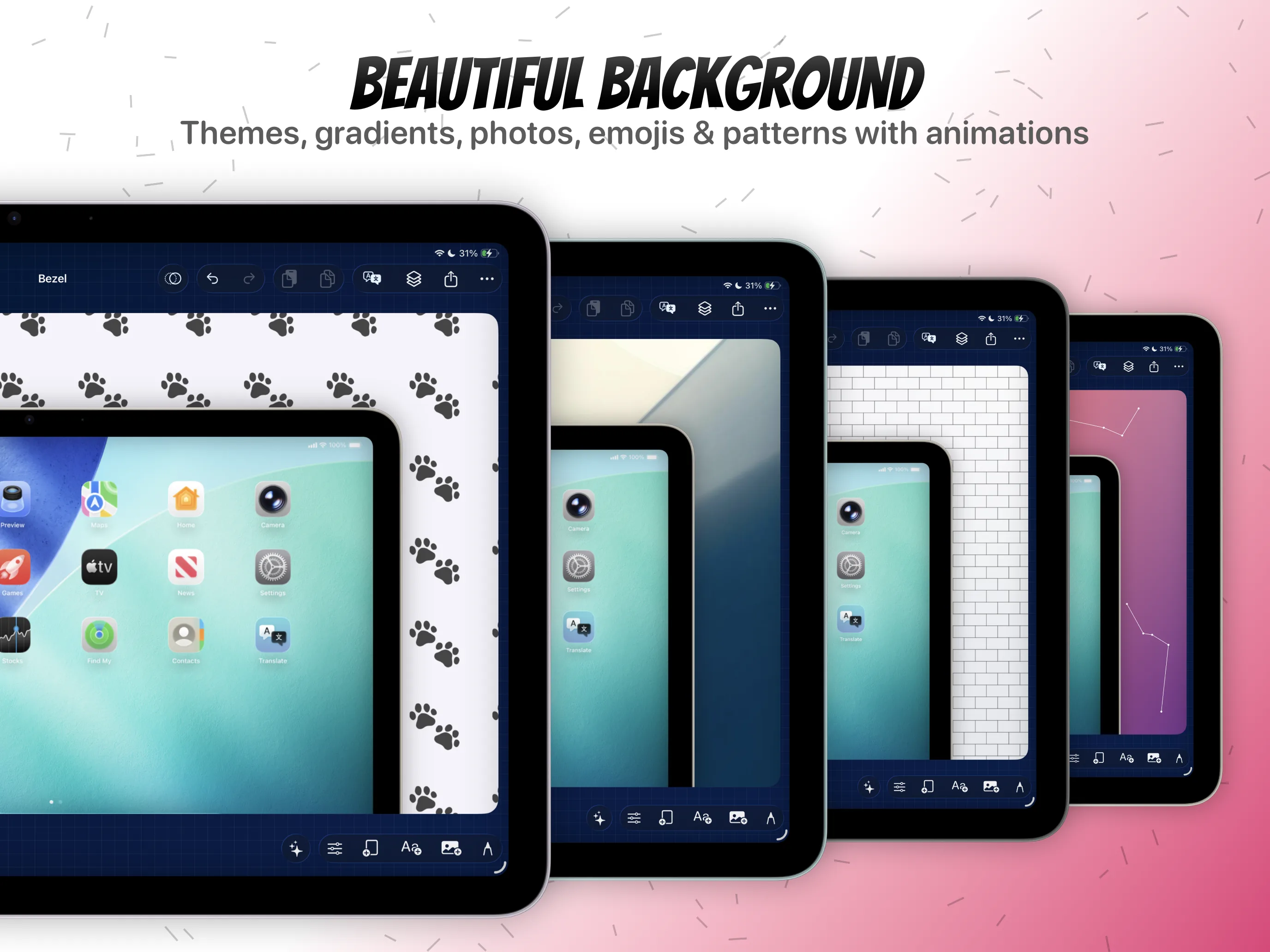
What You'll Build
A cleaner background and lighting direction for one screenshot set.
What You'll Use
BezelAI, gradient backgrounds, lighting, pattern controls, text contrast, and manual canvas polish.
Step 01
Lock the product frame and caption before changing mood.
The background should support the screenshot, not become the message. Confirm the frame placement and headline hierarchy before asking BezelAI for styling changes.
Screenshot To Add
The canvas before AI-assisted background edits.
Step 02
Prompt for a direction, not a pile of effects.
Ask for a quieter gradient, a brighter launch mood, softer lighting, or stronger contrast. One direction gives you a canvas you can evaluate quickly.
Screenshot To Add
A BezelAI prompt focused on background and lighting direction.
Step 03
Check contrast against every text overlay.
After the AI edit, read the caption at mobile preview size. If the background steals contrast, use Bezel Studio's manual styling controls before the design moves into export.
Screenshot To Add
Caption contrast review after background refinement.
Step 04
Tune lighting so the device frame still feels grounded.
Lighting can add depth to the mockup, but too much glow makes the product screenshot feel less precise. Keep the frame readable and avoid hiding UI details.
Screenshot To Add
A lighting adjustment that keeps the device frame readable.
Step 05
Duplicate the approved style across the campaign set.
Use the approved direction as a consistent system. The background styling feature page is useful when the full set needs gradients, patterns, lighting, or transparent export decisions.
Screenshot To Add
The same background system applied across multiple screenshot canvases.
Step 06
Save the background direction before adding motion.
If this layout will become a preview visual, approve the still background first. Motion and export work better when the base canvas already reads clearly.
Screenshot To Add
The final background treatment ready for still export or Canvas Motion.