
 Download Bezel Studio
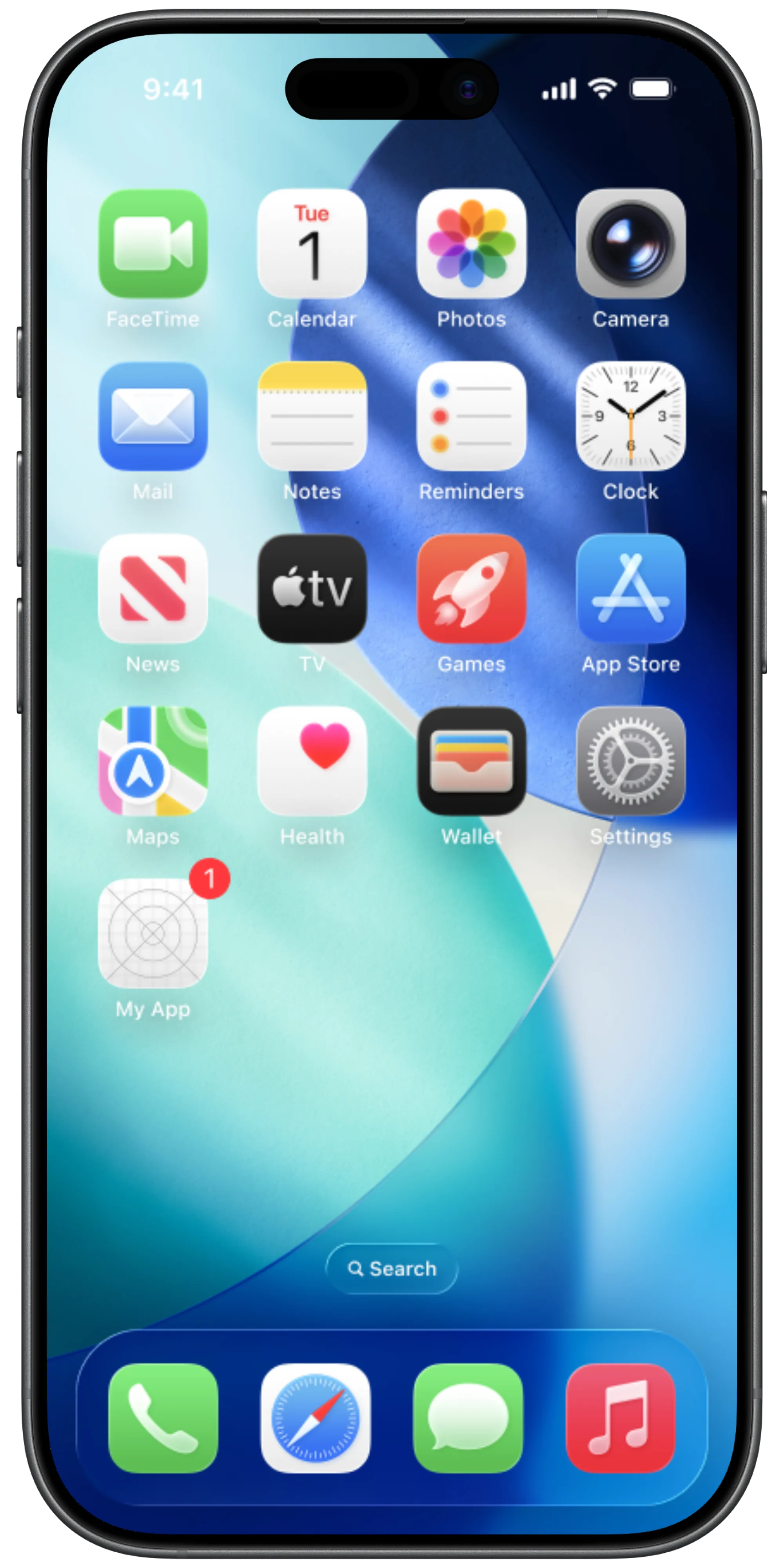
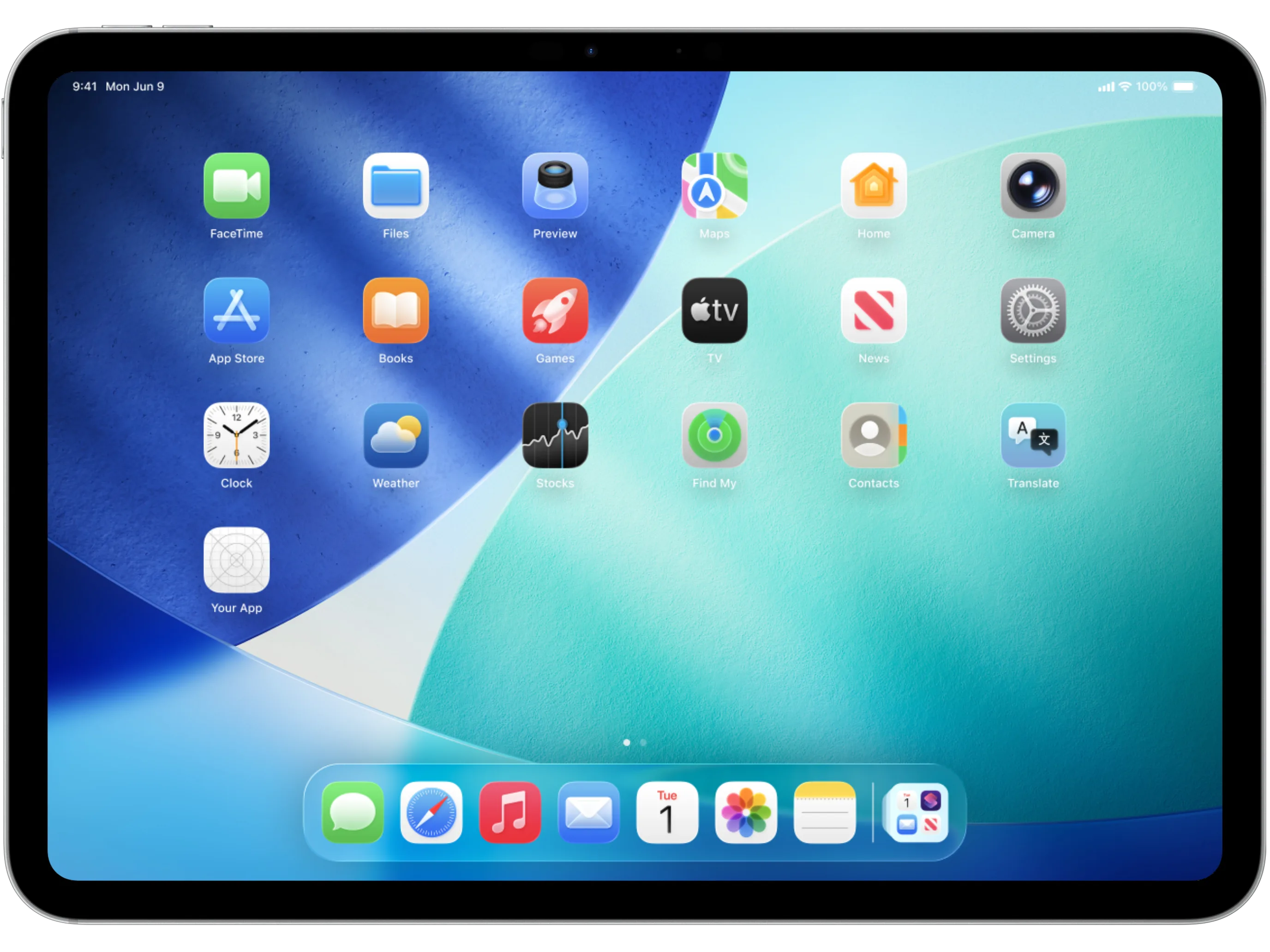
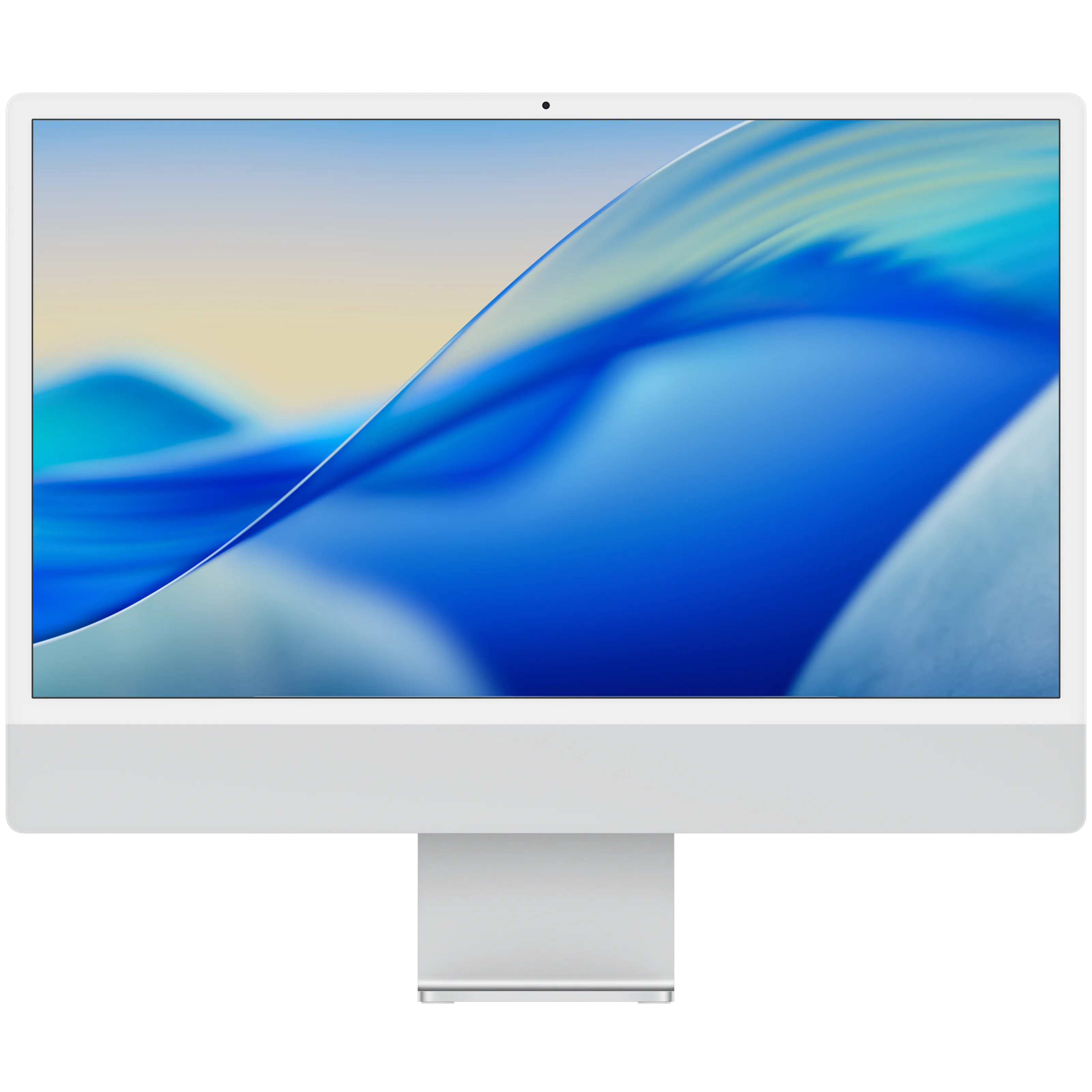
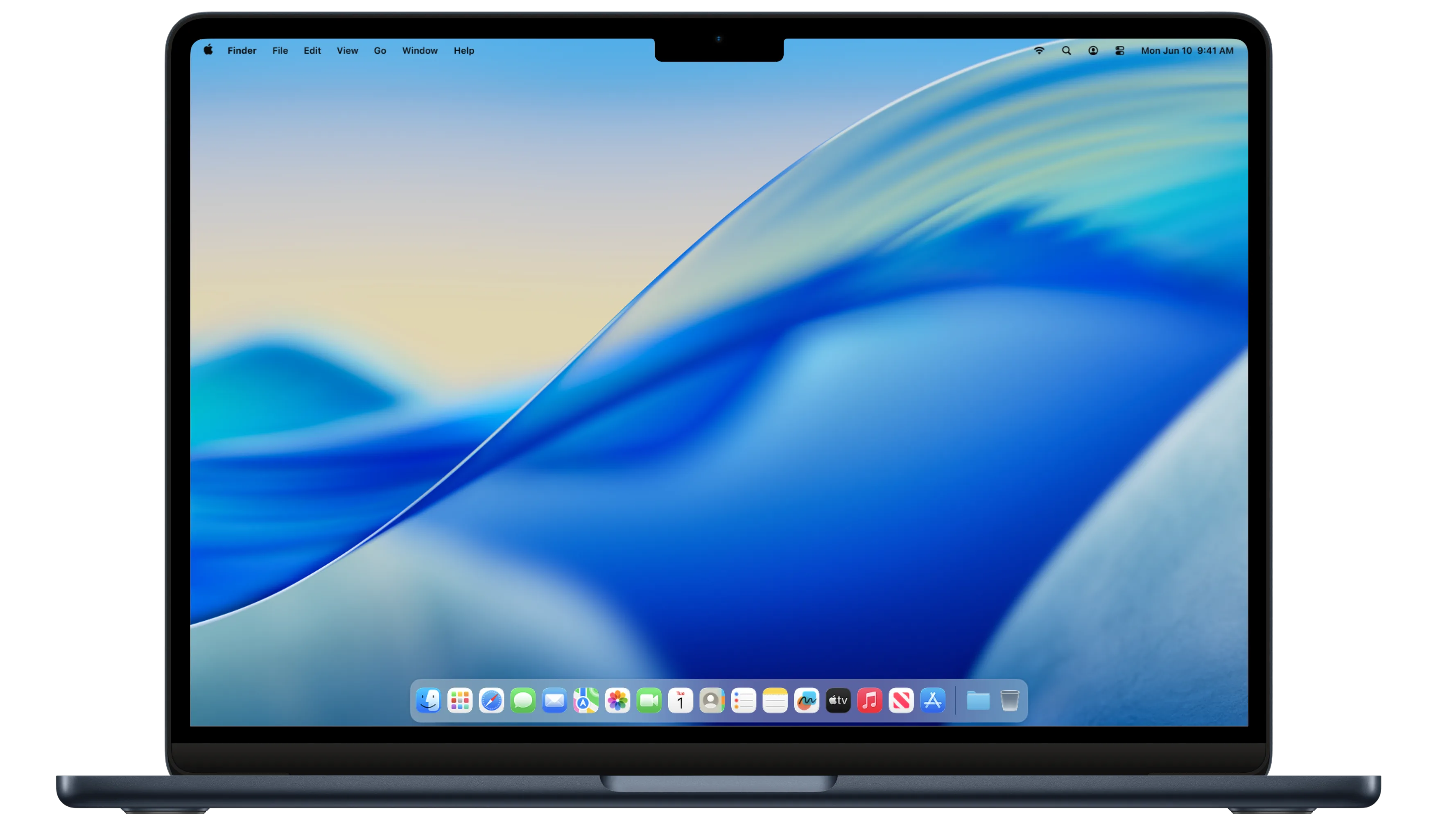
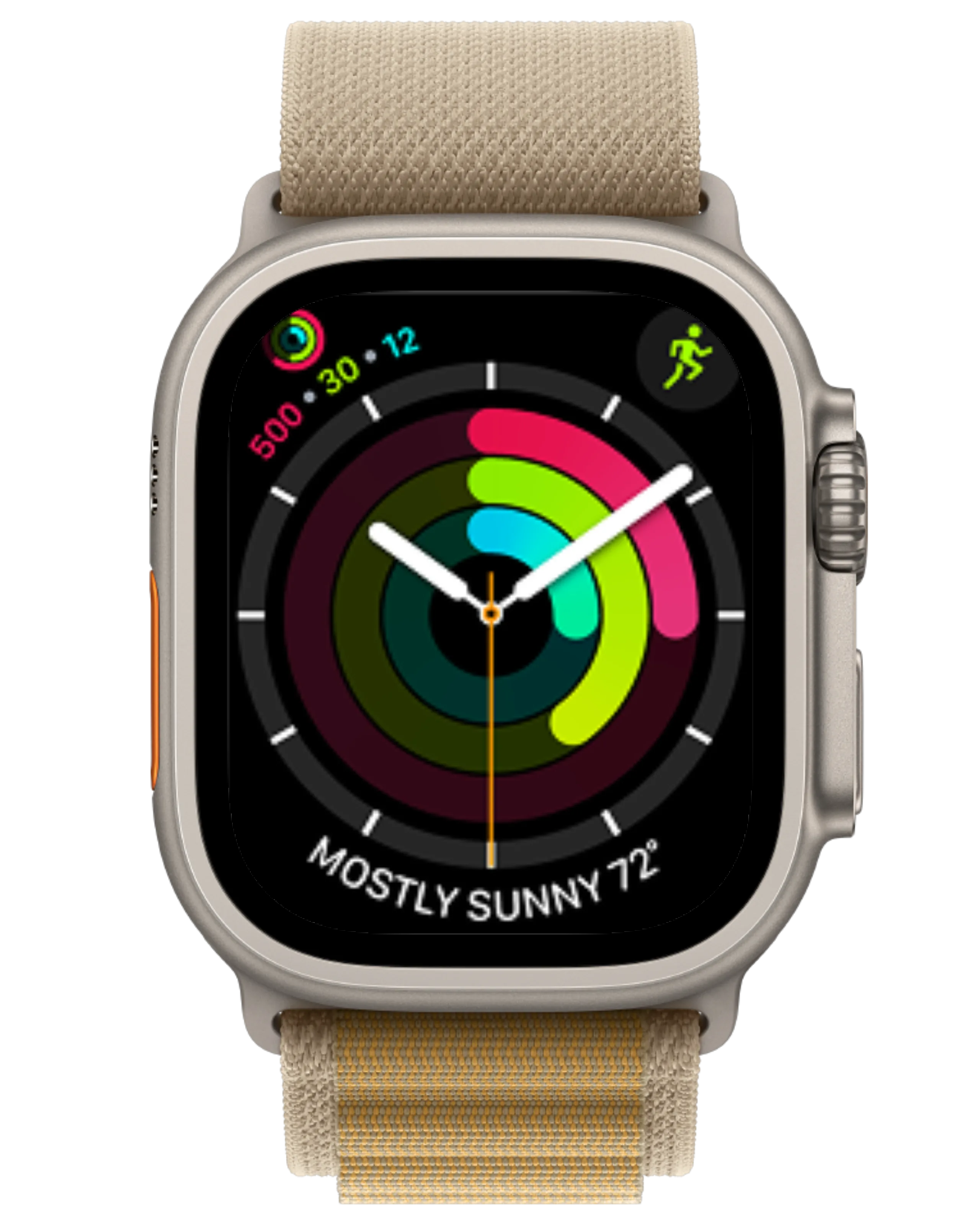
Build iPhone mockups, iPad screenshots, Apple Watch layouts, and multi-device campaign visuals with screenshots or screen recordings placed directly inside precise Apple bezels.
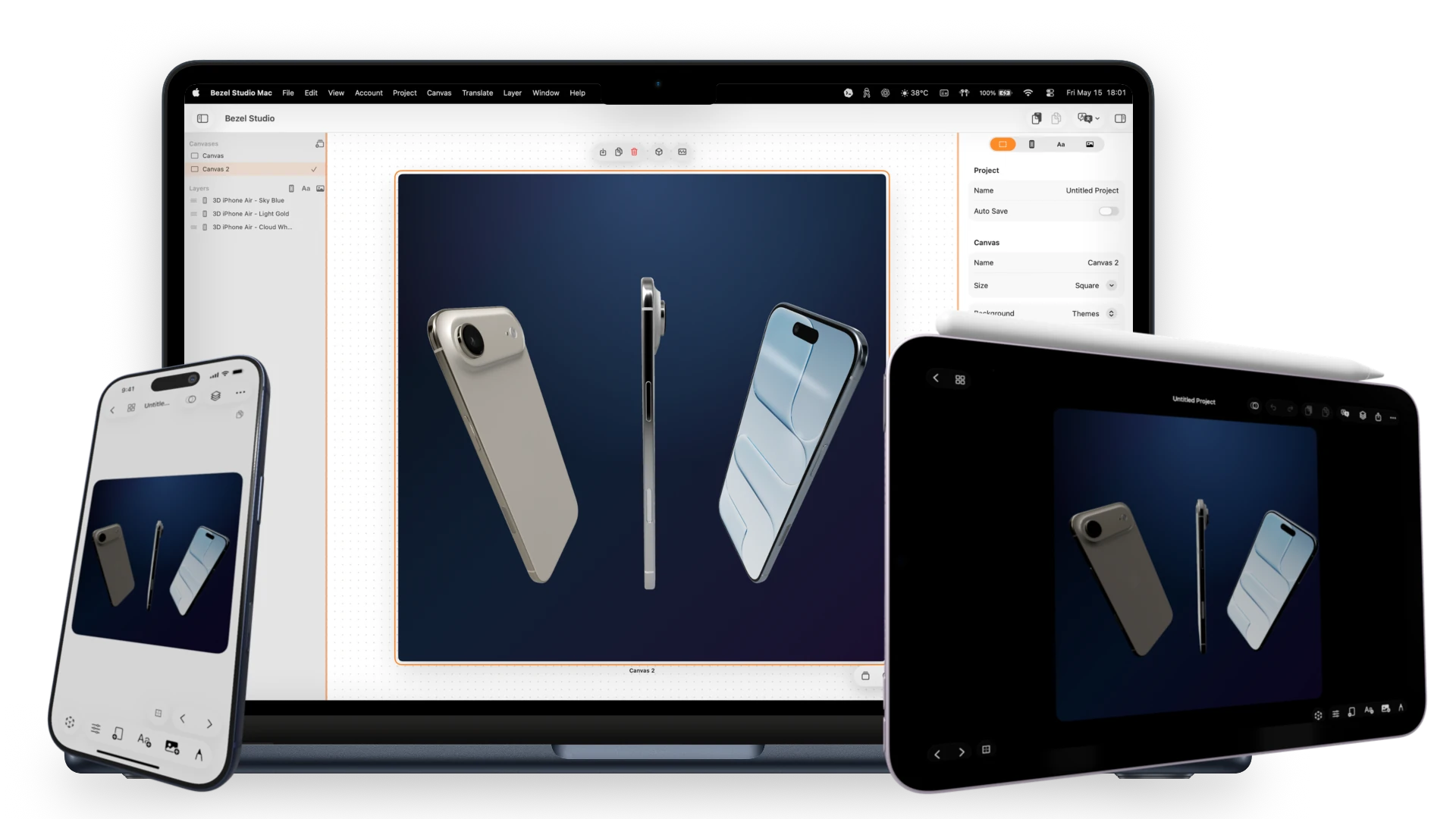
Bezel Studio keeps realistic frames, localized screenshot sets, motion, and export inside one native Apple-first workspace.
Trusted by 2000+ indie iOS developers
Projects, canvases, device frames, typography, stickers, backgrounds, motion, translation, and export all live in one native Apple-first workflow instead of being scattered across multiple tools.
Build iPhone mockups, iPad screenshots, Apple Watch layouts, and multi-device campaign visuals with screenshots or screen recordings placed directly inside precise Apple bezels.
Fonts, gradients, shadows, strokes, and glass-backed captions built for conversion-focused screenshot copy.
Translate the current canvas or an entire screenshot project with Apple Translate so localized App Store assets stop being a manual rebuild.
 Hola
Bonjour
こんにちは
Ciao
नमस्ते
Hola
Bonjour
こんにちは
Ciao
नमस्ते
Remove backgrounds, create bordered cutouts, save reusable assets, and generate new stickers with Image Playground.



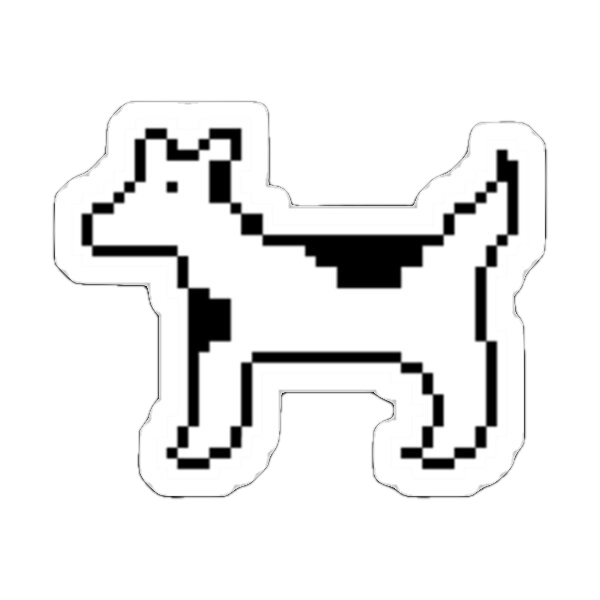
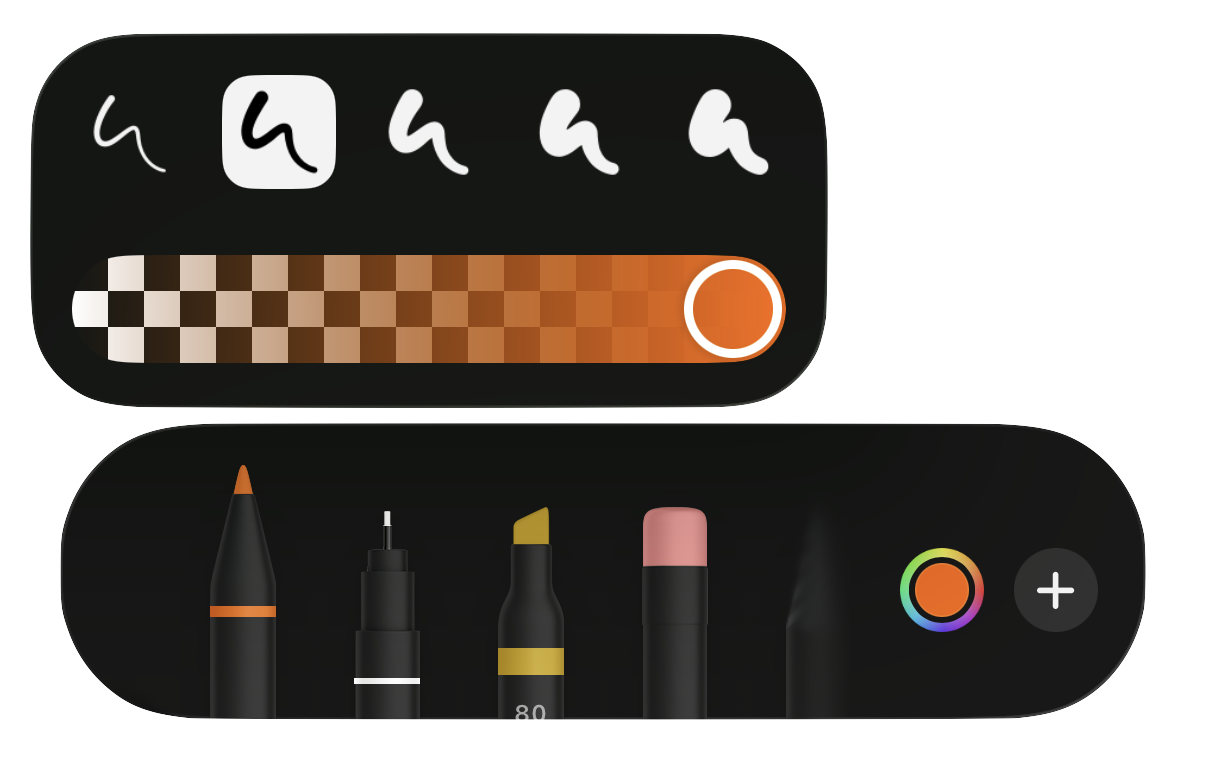
Use PencilKit to circle features, sketch arrows, and add hand-drawn callouts that still behave like editable canvas elements.
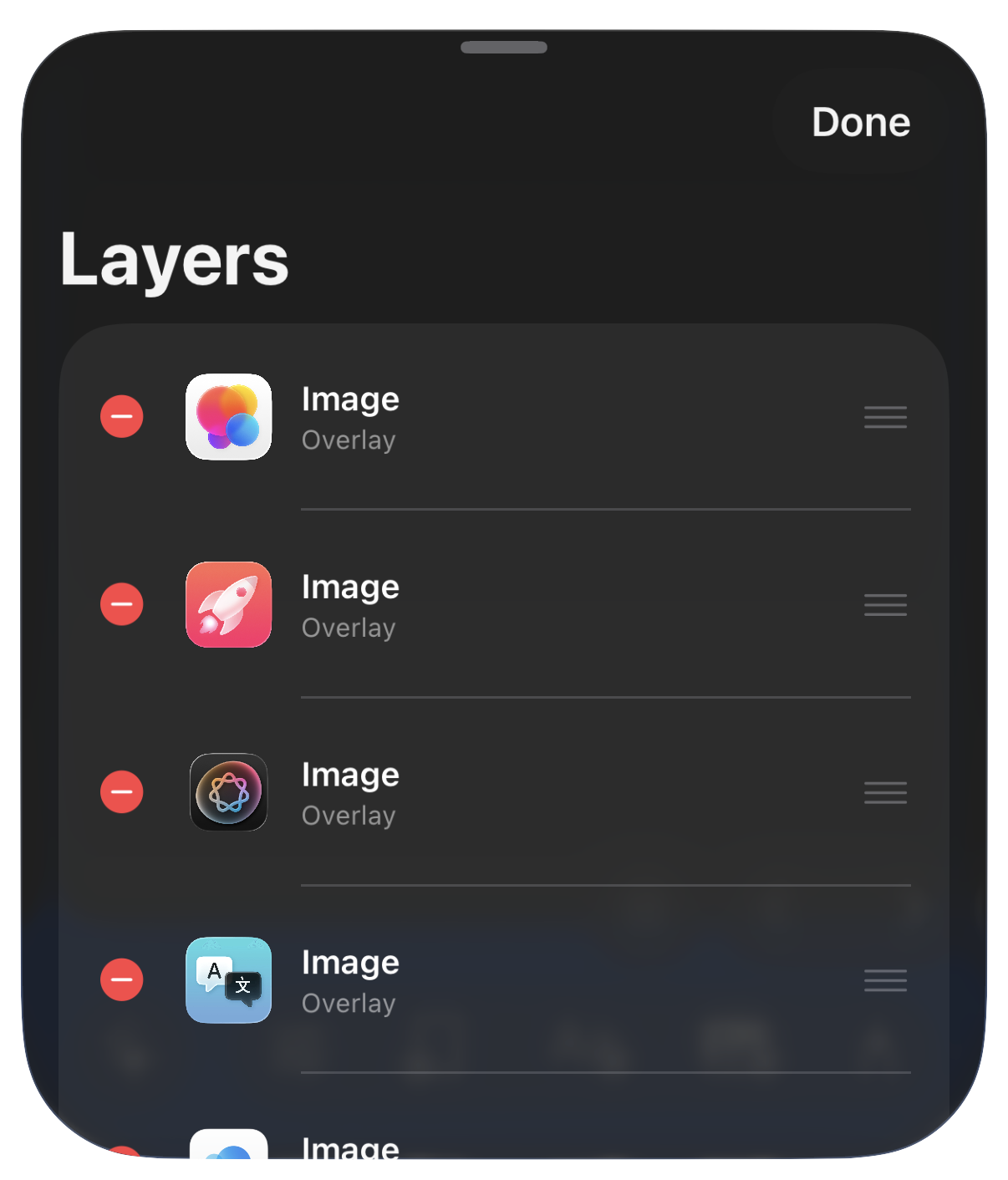
True layer ordering for text, images, drawings, and frames with gesture controls and precision alignment.
Power Features
Create, localize, animate, and export App Store creatives from one native Apple-first workspace.
Keep projects, canvases, and creative progress in sync across your Apple workflow.
Explore iCloud continuity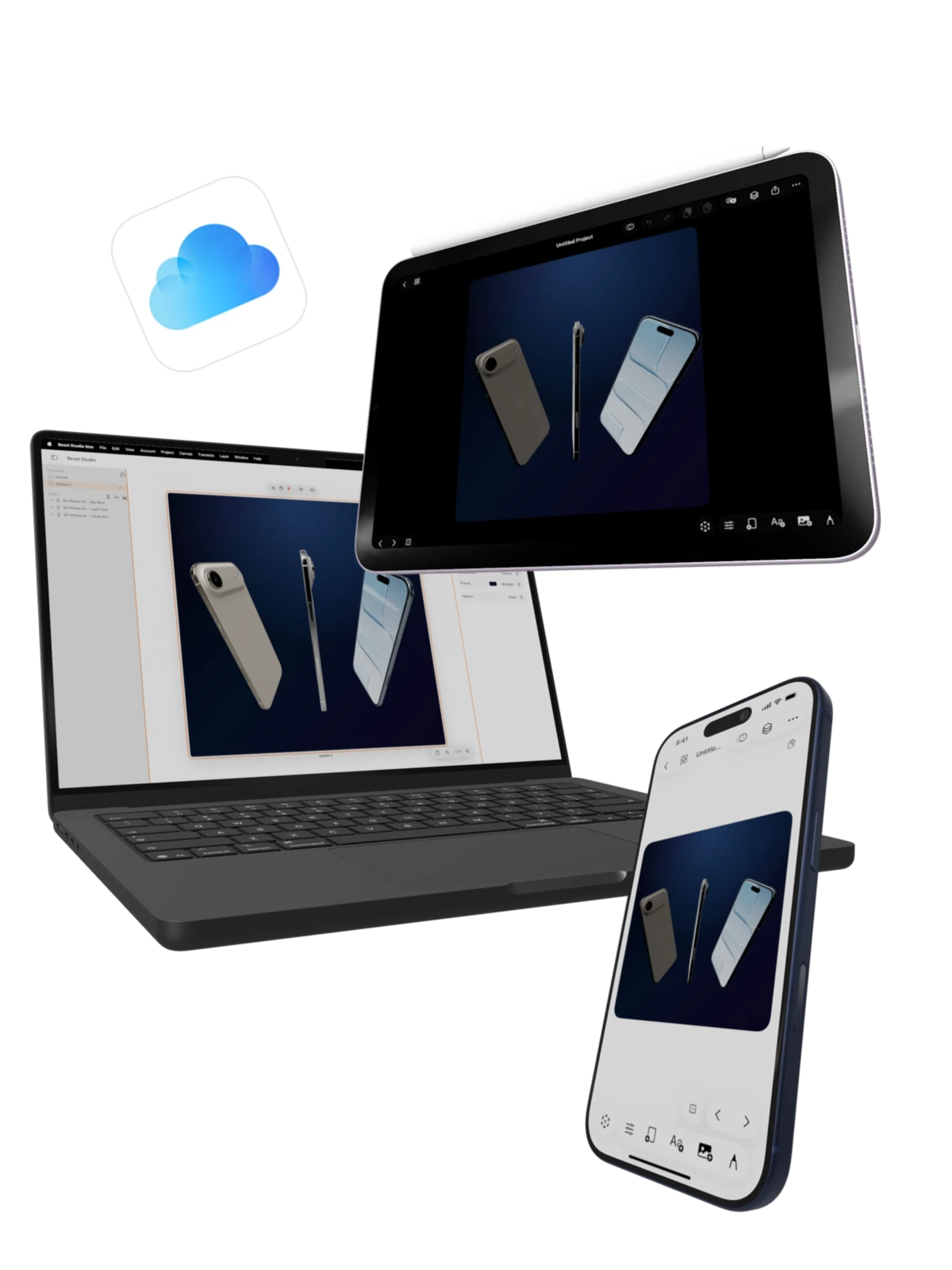
Themes, transparent canvases, gradients, emoji patterns, textures, and lighting in one editor.
Explore background styling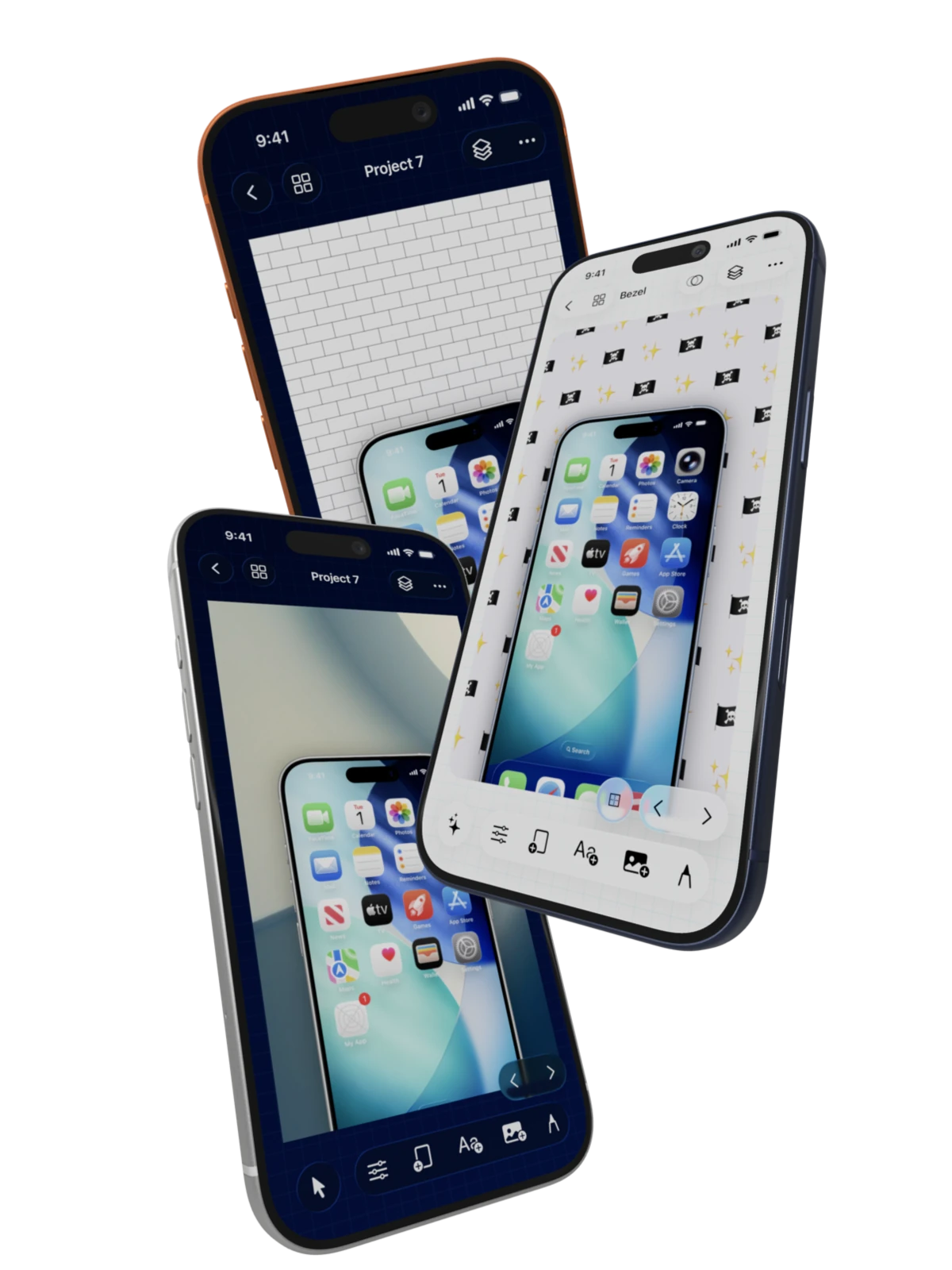
Replace recording indicators, messy time, battery, and signal clutter with a clean Apple-style 9:41 status bar.
Explore Clean Status Bar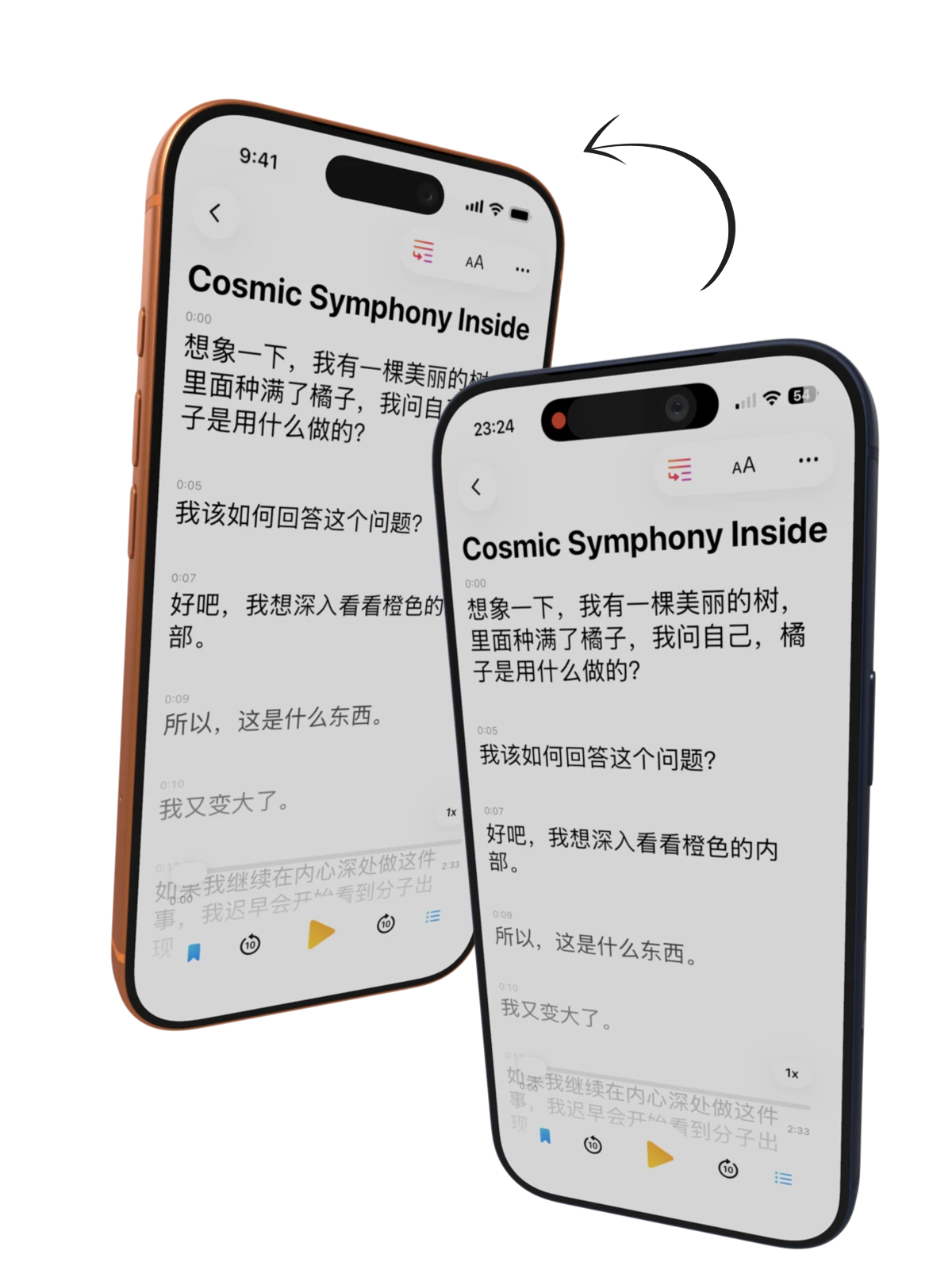
Generate custom stickers, save assets for reuse, and build stronger visual callouts.
Stickers & Cutouts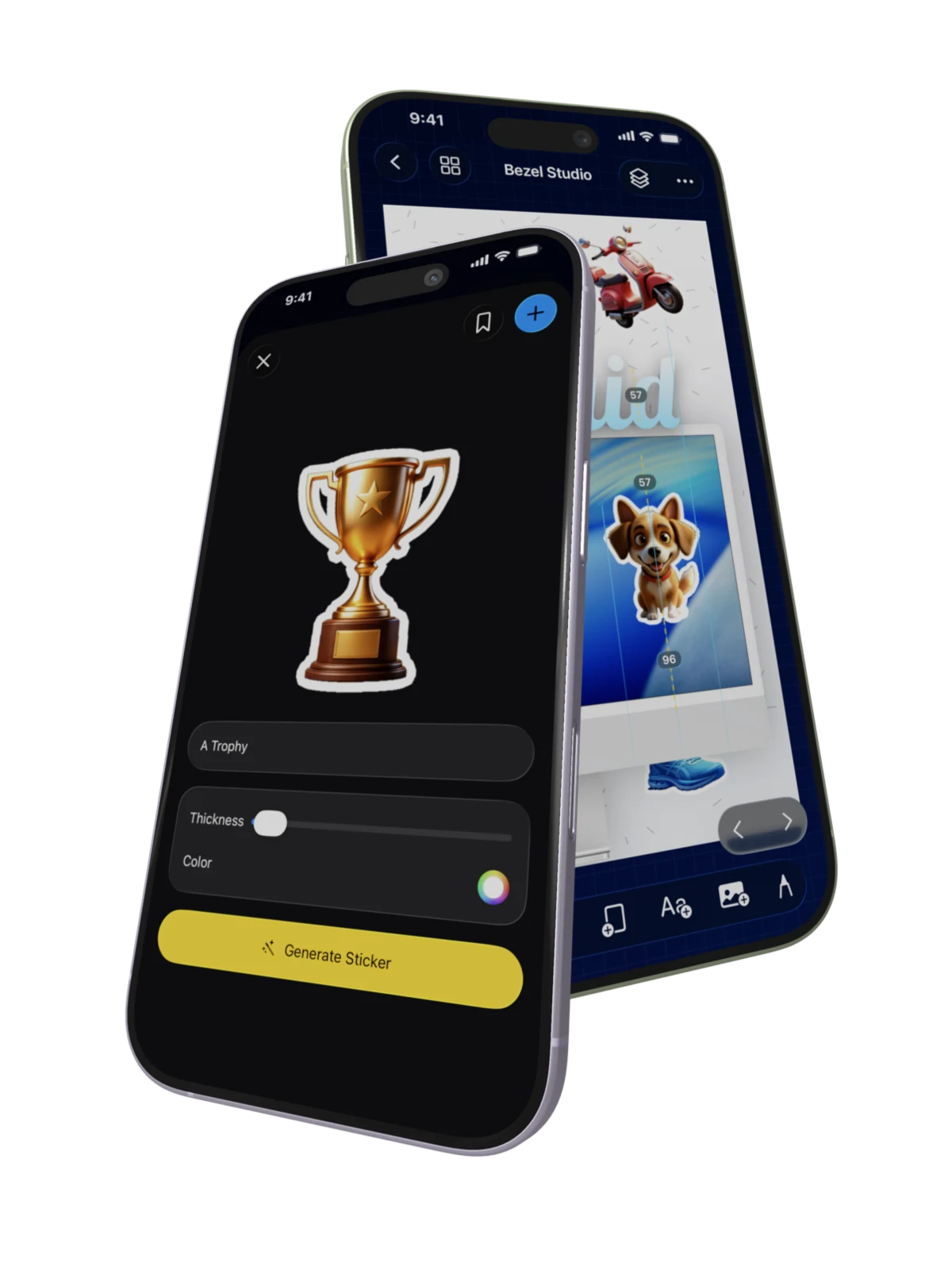
Reorder frames, text, drawings, and images with a real editable layer stack.
Explore precision layers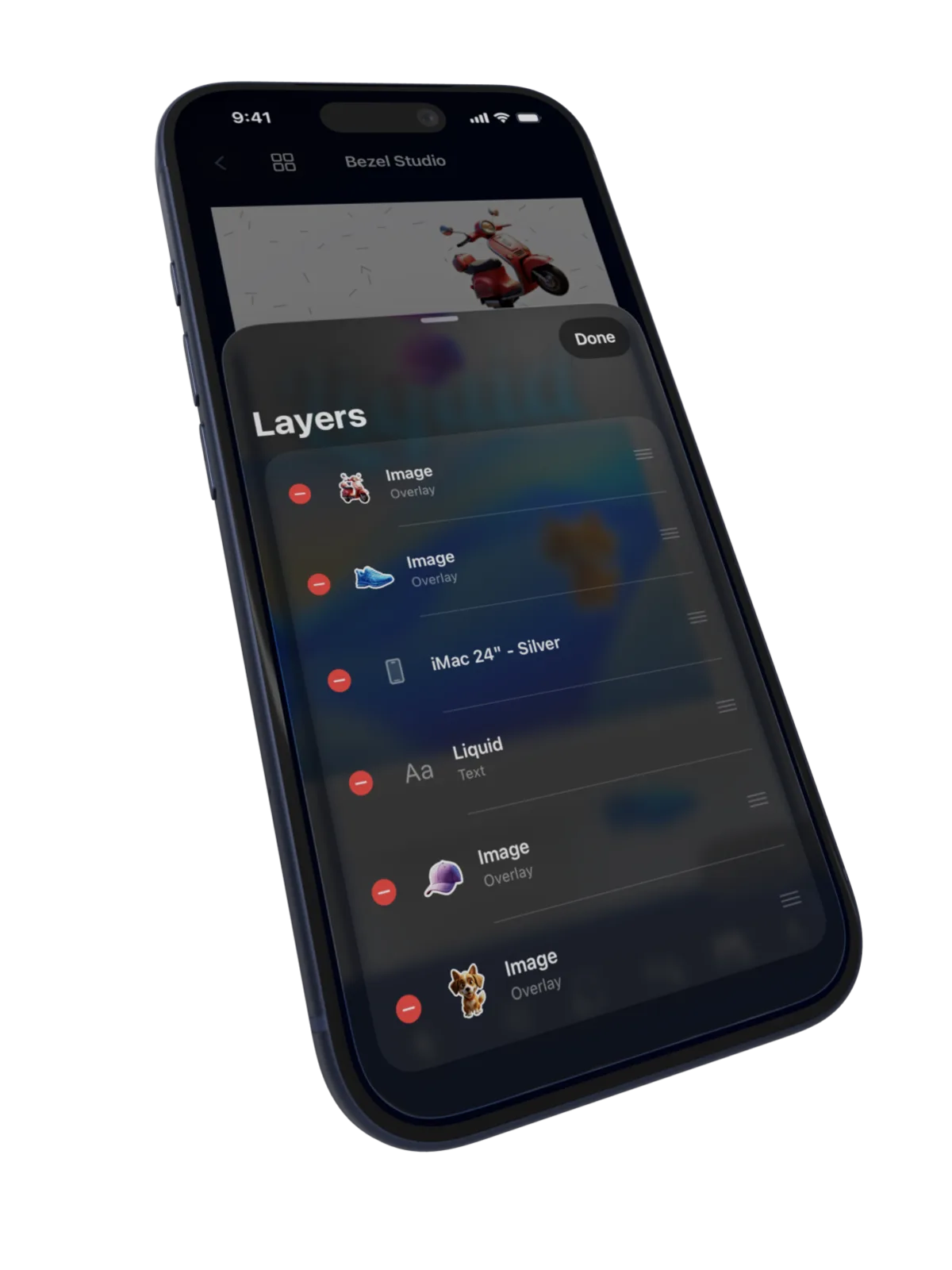
Animate position, scale, rotation, opacity, and timing for video-ready App Store previews.
Explore Canvas Motion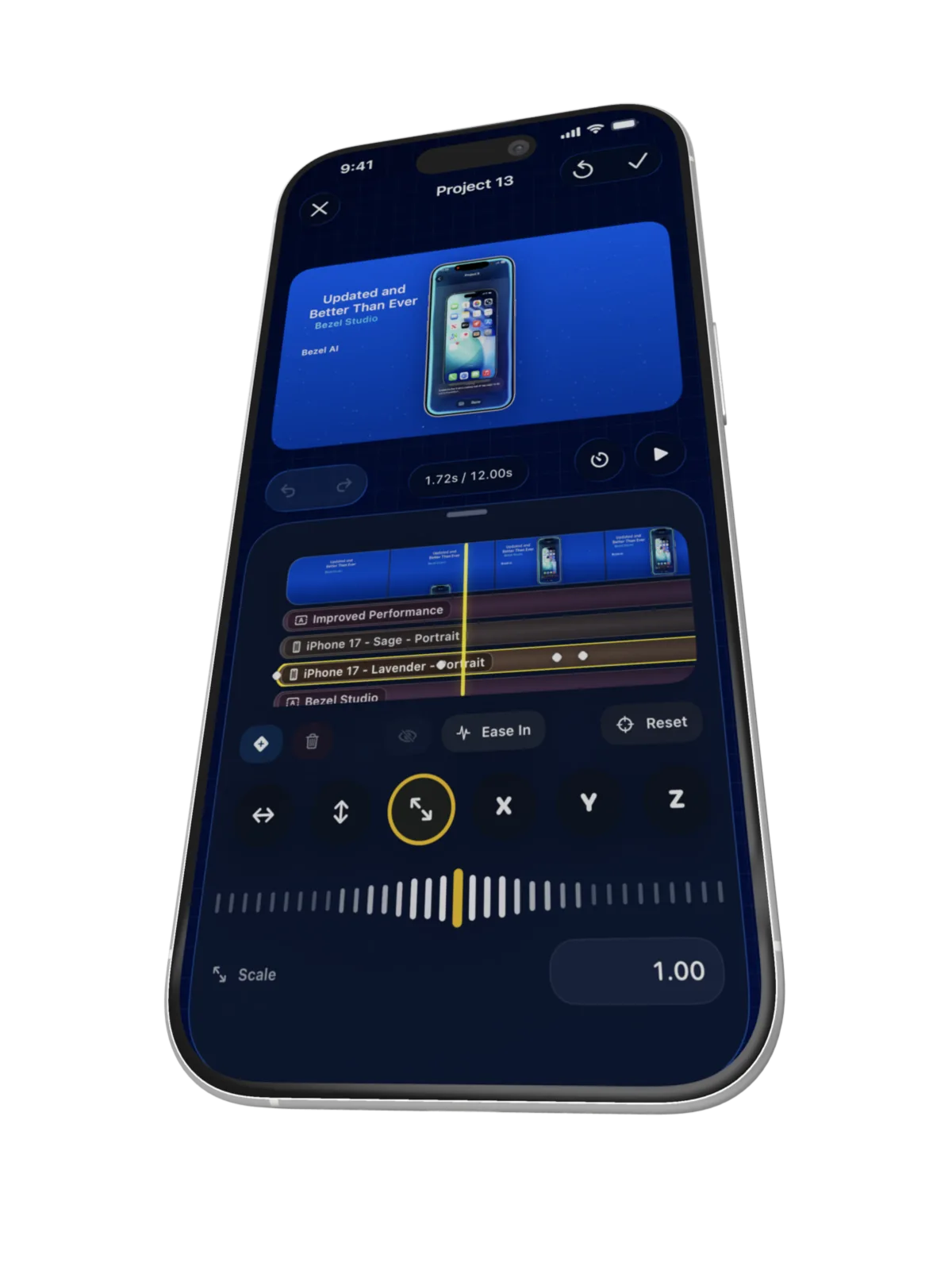
Translate the current canvas or a full project for faster App Store localization.
Open translation workflow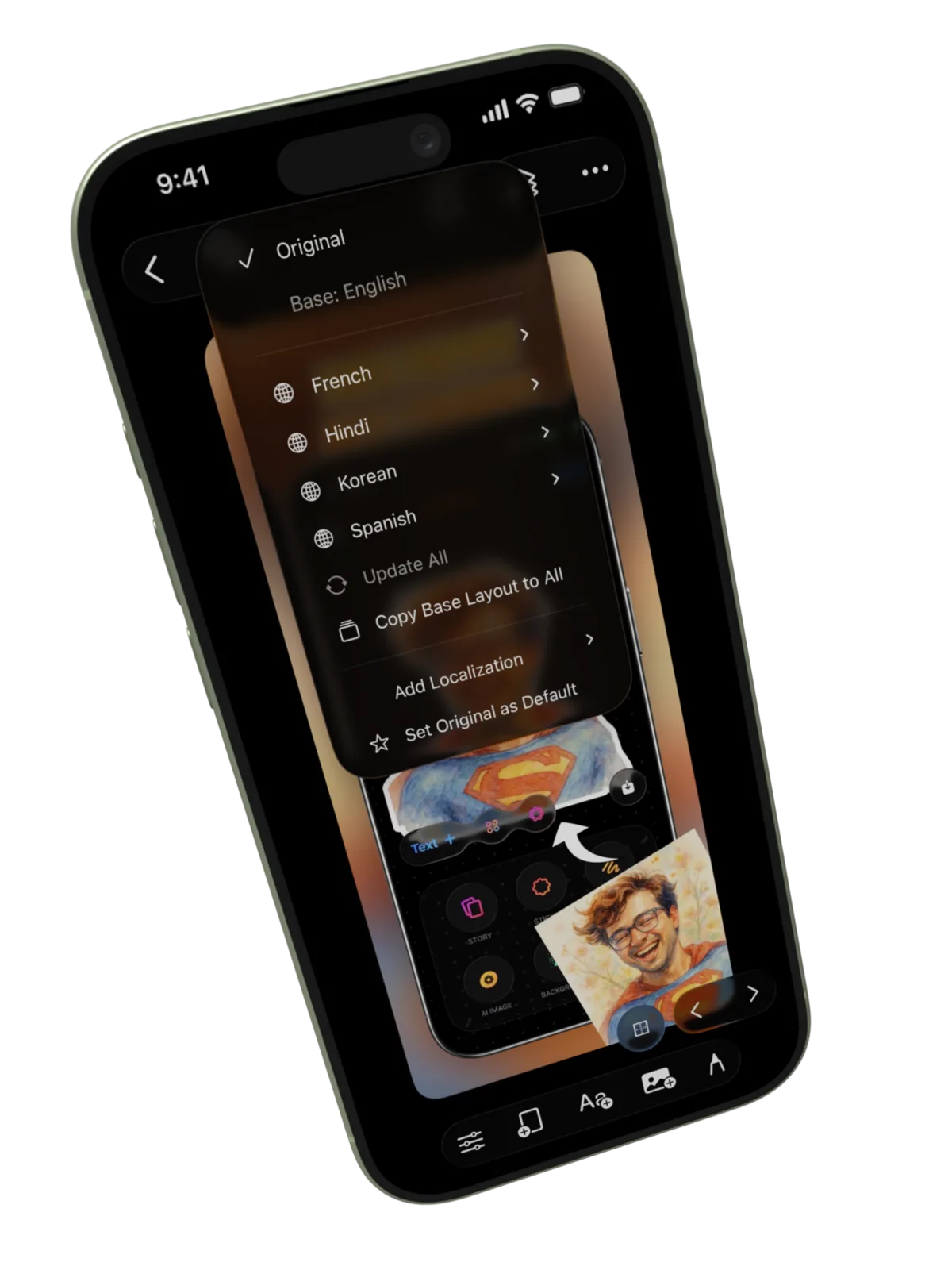
Tilt and position frames, text, stickers, and images across X, Y, and Z axes.
Move layers or full canvases between projects instead of rebuilding proven layouts.
Experiment freely while refining composition, type, layers, and motion.
Style captions with glass, gradients, borders, shadows, and custom fonts.
Build richer backdrops with gradients, textures, emoji patterns, lighting, and motion.
Use BezelAI for canvas edits and Shortcuts for one-tap mockup automation.
Why Teams Stick With It
The same canvas can hold finished screenshots, localized variants, motion previews, reusable assets, and export-ready output, which is why Bezel Studio feels like a workflow instead of a template wrapper.
01
The product model in the docs is the real differentiator: one project holds many canvases, each canvas holds editable layers, and the same structure powers mockups, translation, motion, and export.
01
Compose
Frames, typography, drawings, stickers, backgrounds, and videos all stay editable inside the same canvas state.
02
Scale
Projects can hold alternate devices, multiple screenshots, reusable presets, and localized variants without splitting into separate files.
03
Translate
Translation writes back into the same text overlays, so copy changes do not break layout, hierarchy, or motion decisions.
04
Ship
Preview stills, motion, quick mockups, and export flows all reuse the live canvas instead of forcing a handoff to another tool.
Inside The Editor
Bezel Studio works best when one release needs many outputs: App Store sets, localized variants, motion clips, and reusable layouts that need to stay visually consistent.
“Not just a screenshot wrapper. A full canvas editor tailored for app marketing.”
Editing Model
Late copy changes, updated screenshots, or new launch angles do not force a rebuild because the composition is stored as layered canvas state rather than flattened output.
Motion
Animation tracks are part of the persisted canvas, so preview video work does not split into a different pipeline.
Automation
Quick mockups, translation, and AI edits all act on the same project model the user edits by hand.
Export
Preview, export, save, and share all draw from the same compositing vocabulary, which is why output stays aligned with what was built in the editor.
Source-Backed Model
Trusted By Indies
The strongest signal is that solo app makers use it to ship clean launch visuals without needing a full design stack.
iOS | Version 1.2 | Japan
I’ve been using Bezel a lot to create App Store screenshots and promo visuals for my own apps. It makes it easy to turn raw screenshots into clean, professional-looking images with device frames and simple layouts. I don’t have strong design skills or use tools like Figma, and this app fills that gap perfectly. Being able to position text behind bezels, even in animated demos, is one of the features I like the most. Fast, straightforward, and genuinely useful for indie developers.
iOS | Version 1.2 | United States
I can build the screenshot set, localize the copy, and export the final assets from one place. That alone makes release week much less chaotic. Before this, I was jumping between mockup tools, design apps, and a separate export workflow, and the final result still felt inconsistent. This keeps everything in one flow and saves a lot of time when I need to ship fast.
iPadOS | Version 1.2 | Canada
Once a project grows past a few screens, the bigger canvas and project structure make it much easier to keep every asset visually consistent. I can review multiple directions, adjust type and spacing, and keep the whole set aligned without feeling like I am rebuilding each screen on its own. That is what makes the app feel more like a workspace than a simple screenshot editor.
iOS | Version 1.1 | Germany
The useful part is that translated copy stays in the same composition, so I am adjusting real assets instead of remaking them from scratch. That matters a lot because localized launches usually create extra production work, but here the text stays inside the layout and I can fine-tune the result instead of starting over for every language.
iOS | Version 1.2 | Australia
Device frames, stronger typography, and cleaner exports make small apps look much more intentional in App Store listings and social posts. I do not have a full creative team, so having something that helps the visuals look more polished without adding a complicated process is a big win. It makes the launch materials feel more credible right away.
iPadOS | Version 1.0 | United Kingdom
I like that animation is not treated like a separate tool. I can test timing, adjust layouts, and export without losing the original composition. That makes motion work much easier to experiment with because I am not moving into another app just to preview a simple sequence. The stills and animated outputs feel connected, which is exactly what I wanted for launch assets.
Developer Notes
I wanted it to feel fast, tactile, and thoughtful, something I could open, design with, and ship from anywhere.
Bezel Studio is that pocket studio: App Store screenshot templates, frames, typography, patterns, lighting, stickers, and export all in one flow, so ideas don’t slow down when it’s time to present them.
PARTH.ANT
FAQ
Bezel Studio is a native App Store screenshot maker and Apple device mockup studio for building screenshot campaigns, localized creative sets, preview videos, and launch assets on iPhone and iPad.
One project can hold many canvases, each with device frames, text, stickers, images, videos, drawings, backgrounds, lighting, and motion. That makes it practical for full App Store screenshot sets, localization passes, and alternate campaign variants.
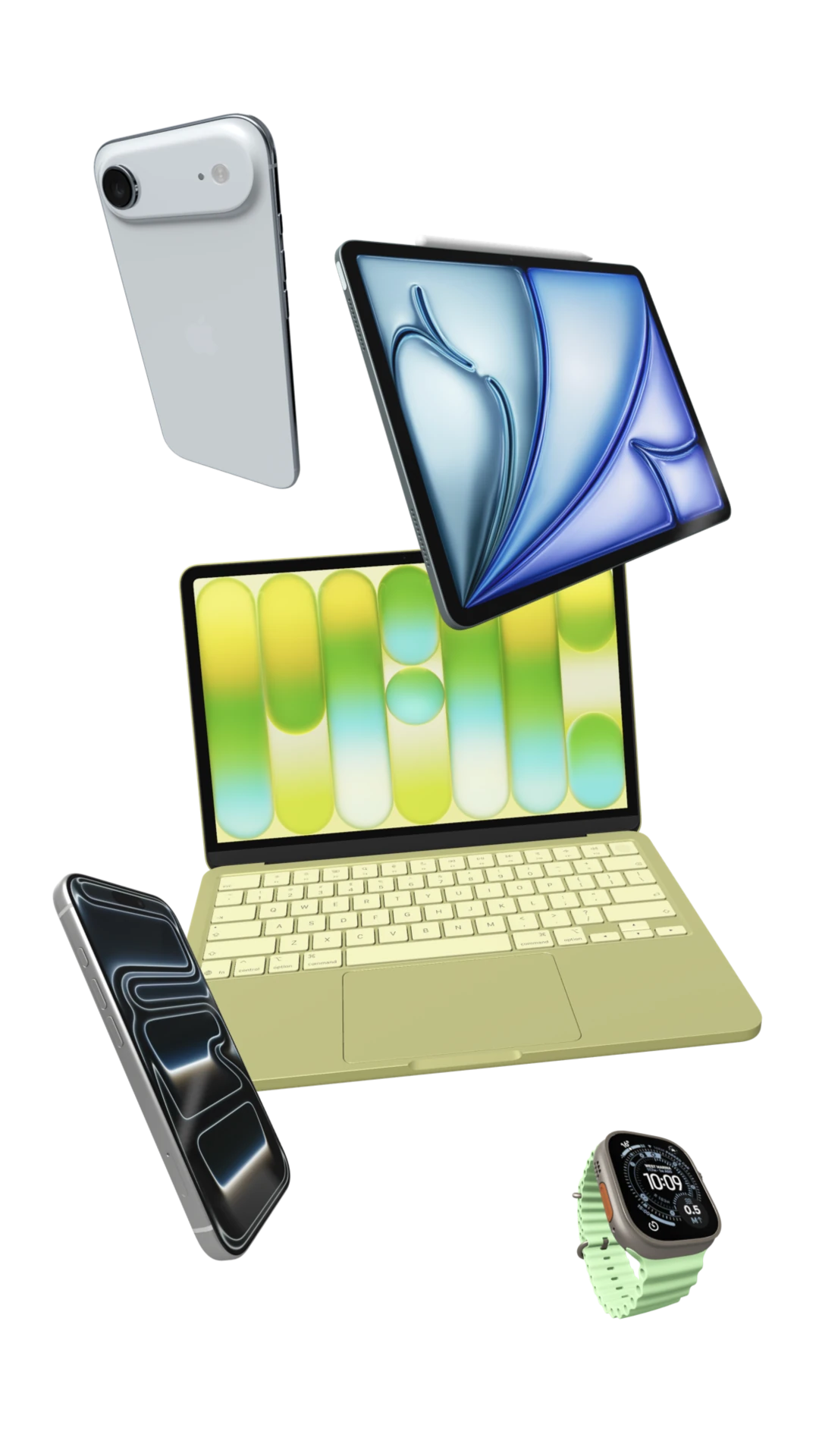
Yes. Bezel Studio is built around Apple device frames and supports ecosystem-style layouts, so you can present phones, tablets, watches, and larger-screen hardware in the same marketing composition.
Yes. You can place screen recordings inside frames, animate canvases and individual items with keyframes, and export polished video assets for App Store previews, social launch clips, or product marketing.
Bezel Studio can translate the text on the current canvas or across an entire project, so you can turn one finished layout into a localized App Store screenshot set much faster than rebuilding every screen by hand.
Yes. You can save size presets, gradients, reusable images, and Quick Mockup templates. Those Quick Mockups can then be used from Shortcuts to generate framed outputs from screenshots or shared media.
You can export a single canvas or full sets as high-resolution images or motion-ready video assets, then save to Photos, send to Files, AirDrop them to a Mac, or share them directly into the next part of your release workflow.
Projects are designed around iCloud-backed continuity, so your project data can follow your Apple workflow instead of being trapped on a single screen.
Feature Paths
These pages match the clearest qualified intent on the site: iPhone mockup generator, clean frame polish, app screenshot templates, App Store screenshot localization, preview videos, BezelAI refinement, and batch export.
Feature
Use structured AI edits and shortcut-ready presets when repeated launch assets need faster polish.
Feature
Turn raw app screenshots into framed iPhone and iPad marketing visuals without leaving the project.
Feature
Replace messy captured status bars with a clean Apple-style 9:41 treatment in supported frame exports.
Feature
Add mirrored reflection depth with blur, opacity, fade, and surface shadow controls.
Feature
Save reusable launch layouts, style presets, and multi-canvas project setups for faster updates.
Feature
Carry one approved scene, caption stack, or full canvas into the next release without rebuilding it.
Feature
Translate captions, preserve layout balance, and keep every locale inside one editable project.
Feature
Animate the same screenshot composition into motion-ready App Store preview visuals and launch clips.
Feature
Render stills, localized sets, and preview videos from the same project when the release is ready to ship.
Supporting workflow tools
Guide Cluster
These four guides answer the new BezelAI search signal while staying grounded in the app's structured edit model: refine the canvas, rewrite captions, adjust backgrounds, then prepare shortcut-ready presets.
Guide 18
Ask for focused edits, then review the text, frame, background, lighting, and motion changes by hand.
Guide 19
Tighten launch copy while preserving editable text layers, spacing, and translation-safe hierarchy.
Guide 20
Explore gradient and lighting direction without burying the product frame or caption contrast.
Guide 21
Build a dependable Quick Mockup preset before repeated screenshots or recordings flow through Shortcuts.
Guide Cluster
These five guides form one linked sequence for the highest-intent release-ops work on the site: localization-ready templates, iPhone mockup variants, caption QA, preview-video localization, and final delivery packs.
Guide 13
Save the master layout with translation-safe spacing before the next locale-specific release starts.
Guide 14
Turn one approved template into framed device variants without losing the campaign structure.
Guide 15
Fix translated headline overflow and hierarchy before export or motion work begins.
Guide 16
Reuse the motion scene and retime only where translated copy changes the pace of the preview.
Guide 17
Ship stills, translated variants, and preview videos from the same reusable release project.
Guide Cluster
These four guides connect the highest-intent release work that was still uncovered: reuse approved layouts, build multi-device promo visuals, review the screenshot set, then export a release asset kit from the same Bezel Studio project.
Guide 22
A reusable screenshot layout carried into the next release without rebuilding frames, captions, and export structure.
Guide 23
A multi-device launch scene that keeps the product screen, caption, and device stack readable.
Guide 24
A launch screenshot set that has been checked as a sequence before final export.
Guide 25
A release-ready delivery kit with approved stills, localized screenshots, and preview-video canvases grouped from one project.
Create screenshot sets, Apple device mockups, localized campaigns, and preview videos from the same project, then export when your release is ready.
Fastest routes
Open the closest commercial feature page first, then install once the workflow matches your release week: mockups, templates, localization, or preview videos.
Mockups
Turn raw screenshots or recordings into framed iPhone, iPad, Mac, and Watch visuals without leaving one project.
Templates
Save the approved App Store layout once, reuse it across releases, and keep export-ready structure intact.
Localization
Translate the live project, review copy expansion, and keep the same launch system across every market.
Preview videos
Reuse the same composition for motion-ready App Store previews instead of rebuilding the scene in another tool.
Need proof first? Browse the step-by-step guide archive before you install.
Browse App Store screenshot guides