
How-To Guide 05
How to create App Store preview visuals with Canvas Motion.
Motion is persisted in the same canvas model as still layouts, which is why this guide matters. It should show that animation is not a separate export hack, but a direct extension of the composition the user already built.
What You'll Build
A motion-ready App Store preview visual that begins as a static composition and ends as rendered video.
What You'll Use
Canvas Motion, keyframes, timing, easing, preview, and video export.
Screenshot Plan
Use 1 final motion cover, 1 static starting canvas, 4 timeline or keyframe images, 1 preview image, and 1 export image or short clip frame.
Step 01
Start from a static composition that already works.
Before adding motion, make sure the layout is worth animating. The guide should begin with a stable still image so readers can see motion as an enhancement to composition, not a substitute for it.
Screenshot To Add
Completed static canvas before motion editing begins.
Step 02
Open Canvas Motion and create the first keyframe.
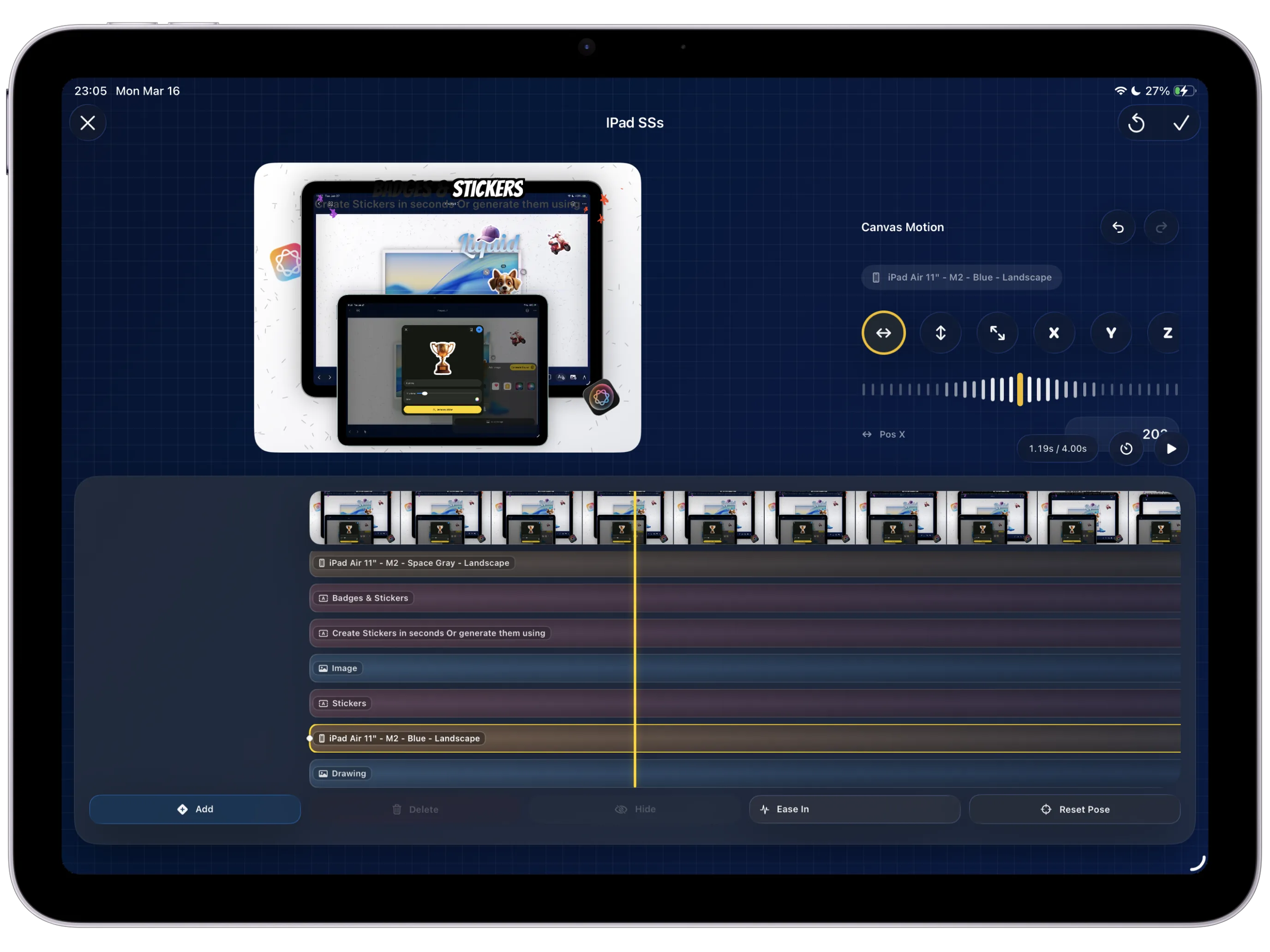
Enter the motion workflow and establish the first state of the animation. Make the editor controls visible so the page teaches where motion actually lives inside the app.
Screenshot To Add
Canvas Motion interface open with the first keyframe set for one visible element.
Step 03
Animate position, scale, opacity, or rotation.
Choose one clear motion change that improves the message of the screen. The tutorial should stay focused on one or two strong animation decisions instead of trying to animate everything at once.
Screenshot To Add
Second keyframe or parameter adjustment showing the main motion change in progress.
Step 04
Adjust duration and easing until the movement feels intentional.
Show the part of the workflow where motion stops feeling mechanical. Timing and easing are what make the preview feel polished instead of just technically animated.
Screenshot To Add
Timing and easing controls visible while refining the animation.
Step 05
Preview the motion on the canvas before export.
Play the sequence back in the editor and confirm that the motion reinforces the layout instead of fighting it. The tutorial should capture one frame or timeline state that proves the preview is happening inside the same workspace.
Screenshot To Add
Motion preview in progress inside the canvas editor.
Step 06
Export the animation as a finished preview visual.
Render the motion result and show the final output as a video-oriented deliverable. The guide should end by reinforcing the product promise: stills and motion come out of the same composition model.
Screenshot To Add
Video export panel or final preview visual shown after render completes.