
How-To Guide 14
How to create iPhone mockup variants from one template.
Once the master layout exists, the next job is creating polished framed variants without redesigning the whole campaign. This workflow turns one approved template into iPhone-first mockups that still remain compatible with translation, iPad branches, and final export.
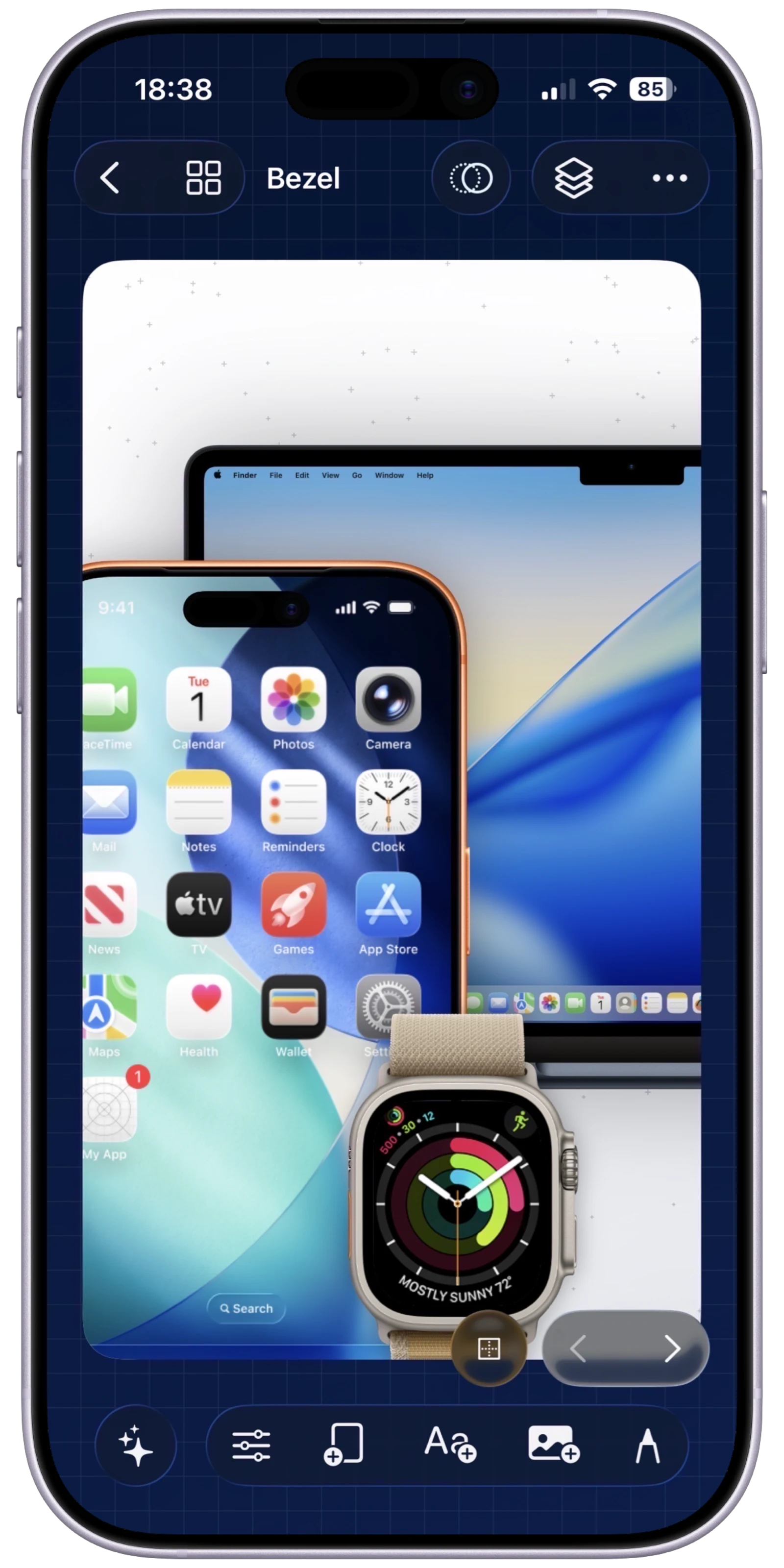
What You'll Build
A family of framed iPhone mockups created from one approved template instead of a pile of unrelated launch files.
What You'll Use
Device frames, duplicated canvases, safe spacing, multi-device layout checks, and template reuse.
Screenshot Plan
Capture 1 master template, 1 new iPhone frame pass, 1 alternate device branch, 1 spacing cleanup, 1 translated mockup variant, and 1 approved final set.
If you want the template-and-variant workflow in the product now, open the iPhone mockup generator or install Bezel Studio and keep the same project reusable for every release.
Step 01
Duplicate the approved localization-ready template instead of starting from scratch.
Open the master project from the localization-ready template guide. The point is to preserve the headline system, spacing, and translation-safe rhythm before you swap any frames.
Screenshot To Add
The approved template duplicated into a fresh branch for device-specific mockup work.
Step 02
Swap in the iPhone frame that fits the launch story.
Use the controls from the iPhone mockup generator and device frames feature page to choose the right hardware context. The frame change should support the campaign message, not create a new composition problem that the base template already solved.
Screenshot To Add
A device-frame picker or framed iPhone screen replacing the original template frame.
Step 03
Create the second device branch while the composition is still clean.
Duplicate the first iPhone mockup variant into an alternate size or supporting device before the campaign drifts. This keeps the launch pack aligned when iPad, alternate locale, or review versions need the same story told in slightly different hardware.
Screenshot To Add
The iPhone mockup duplicated into a second device or review branch using the same template backbone.
Step 04
Rebalance spacing so the frame never crushes the caption system.
After the new frame is in place, tighten margins and let the headline breathe again. The frame should sharpen the product story, not force the translated copy to sit too close to the bezel edge or the screenshot itself.
Screenshot To Add
One framed mockup adjusted so the caption hierarchy and device spacing feel balanced again.
Step 05
Test the mockup with translated copy before you approve it.
Run one locale through the framed mockup and confirm the headline still fits. The cleanest device variant is the one that already survives the caption review pass you will do next, not the one that only works in English.
Screenshot To Add
An iPhone mockup variant shown with translated copy to confirm the template still holds after localization.
Step 06
Save the approved mockup family back into the release system.
Keep the new iPhone and supporting device variants inside the same master project so caption review, preview-video variants, and final export can all reuse them without rebuilding the scene again.
Screenshot To Add
The approved iPhone mockup variants saved as part of the same reusable launch system.