
How-To Guide 21
How to prepare shortcut-ready mockup presets for repeated launch assets.
Quick Mockups work because the preset already knows the canvas. Build the reusable mockup first, then use Shortcuts when new screenshots or recordings need the same polished treatment again.
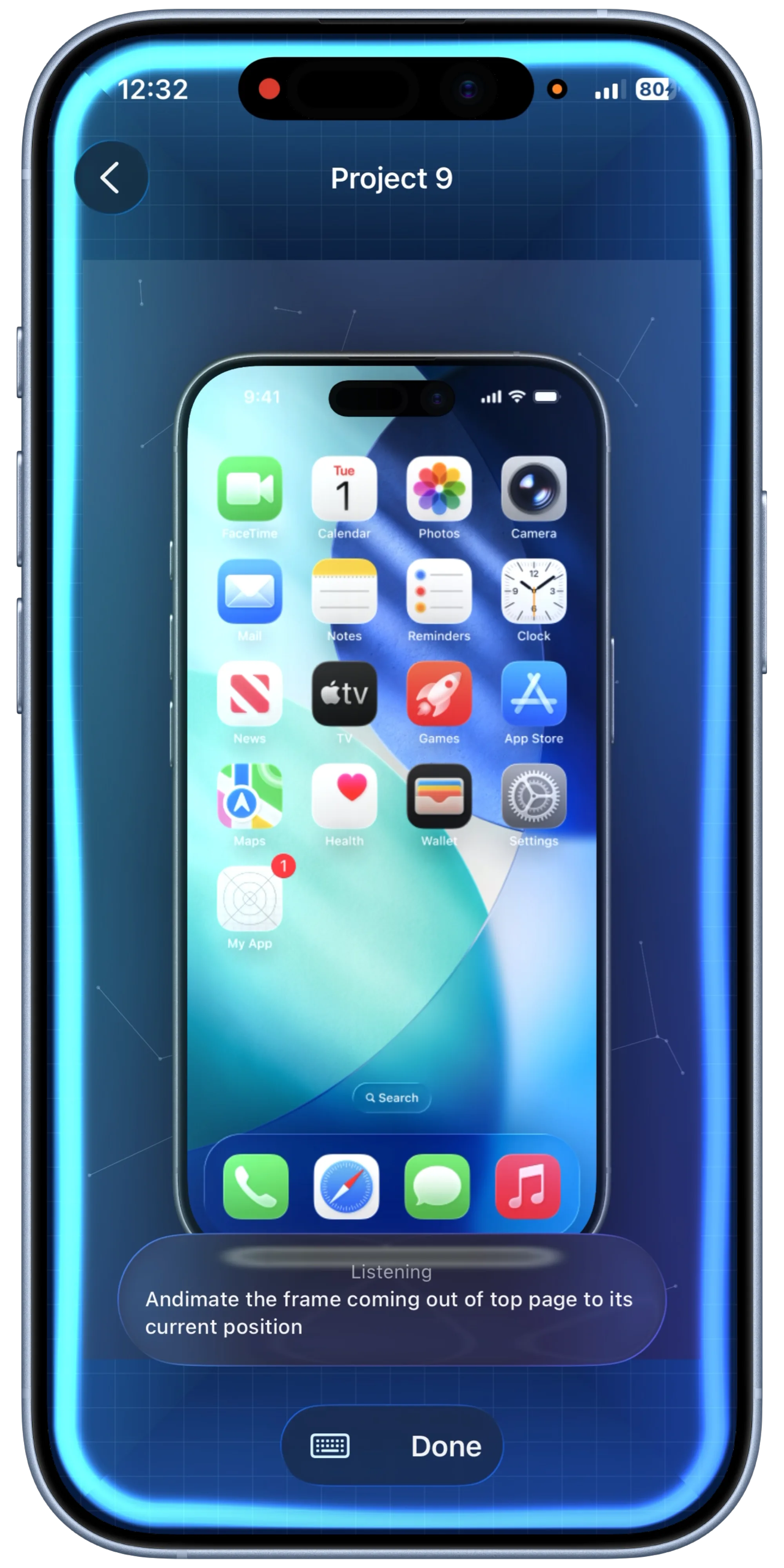
What You'll Build
A reusable Quick Mockup preset prepared for Shortcut-driven screenshot or recording input.
What You'll Use
Quick Mockups, saved presets, frame setup, reusable canvas state, Shortcuts, and final export review.
Step 01
Design the mockup before you automate it.
Build a clean canvas with the right frame, background, and caption treatment. Shortcut automation is useful only when the preset already reflects the launch style you want repeated.
Screenshot To Add
The finished manual mockup that will become the preset.
Step 02
Save the canvas as a Quick Mockup preset.
Store the reusable canvas state with a clear name tied to the campaign or asset type. The preset should be specific enough that future screenshots land in the right visual system.
Screenshot To Add
The Quick Mockup preset saved with a launch-specific name.
Step 03
Test with one screenshot and one recording if your release uses both.
The docs support image and movie input through the Shortcut mockup path. Test the preset with the media types the release actually needs before relying on it during a launch rush.
Screenshot To Add
A still screenshot and recording tested against the saved preset.
Step 04
Keep the preset narrow enough to stay predictable.
Avoid one preset that tries to cover every device, background, and campaign. Build separate presets for materially different launch uses so Shortcuts output stays consistent.
Screenshot To Add
Multiple focused Quick Mockup presets for different launch assets.
Step 05
Run the preset from Shortcuts and inspect the result.
Use the instant mockups with Shortcuts guide for the automation pass. After output renders, check crop, frame placement, and caption clearance before saving it to the release set.
Screenshot To Add
Shortcut-generated mockup output reviewed in Bezel Studio.
Step 06
Use BezelAI only for the refinements that should change.
Once a preset is stable, use BezelAI canvas refinement for deliberate variations, not accidental drift. The shortcut preset should remain the dependable baseline.
Screenshot To Add
The stable shortcut-ready preset plus one intentional BezelAI-refined variant.