
How-To Guide 03
How to build a full App Store screenshot set in one project.
The docs are explicit that a project is meant to hold an entire asset set, not a single isolated screen. This guide should teach that model directly, because it is one of the clearest differentiators on the site.
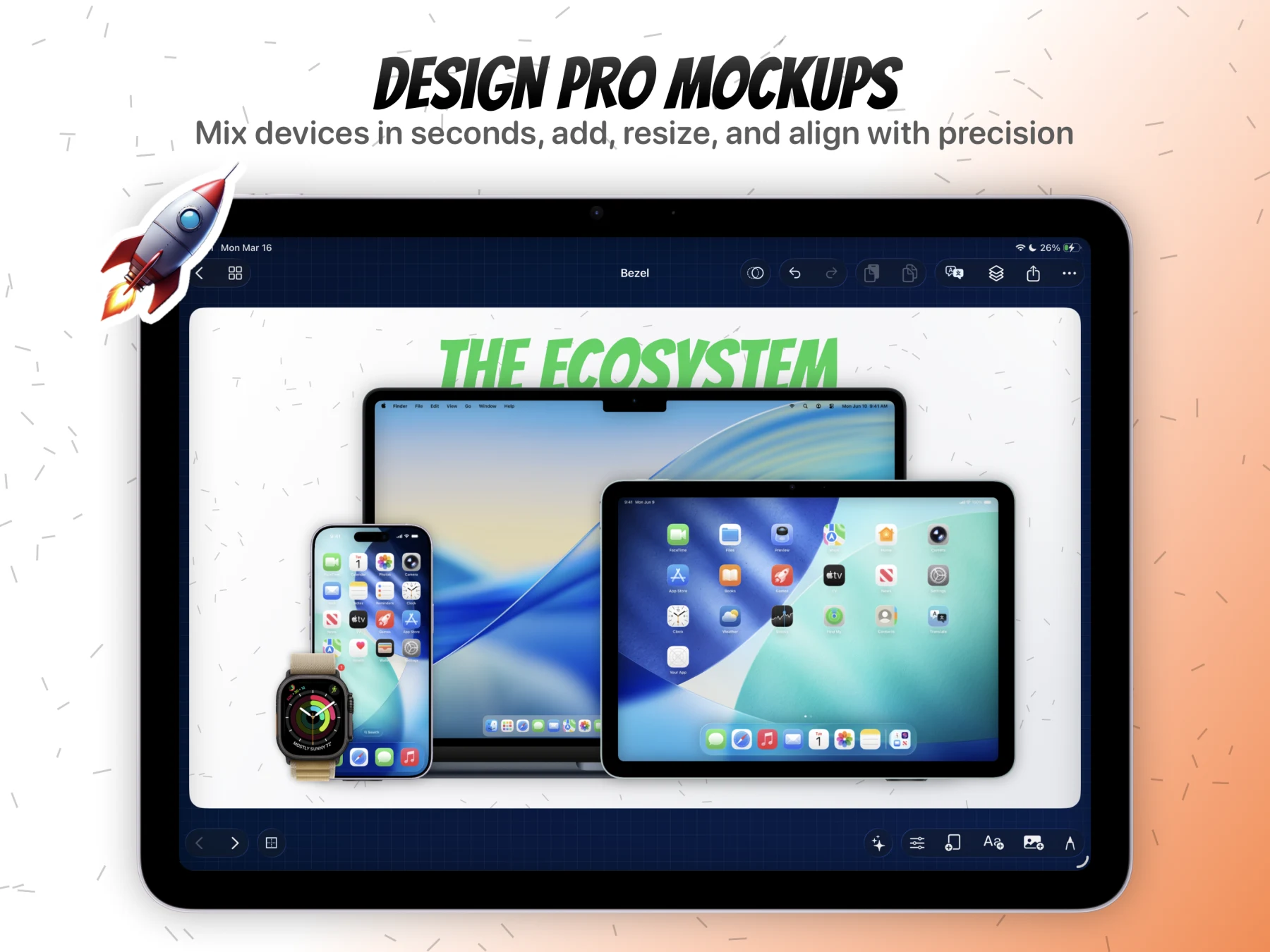
What You'll Build
A multi-screen App Store screenshot set that stays inside one project instead of being split across separate files.
What You'll Use
Projects, canvases, duplication, grid mode, reuse, and multi-canvas export.
Screenshot Plan
Show 1 final set image, 1 starting base canvas, 3 canvas-building images, 1 grid mode image, and 1 multi-export image.
Step 01
Create the first base canvas for the campaign.
Build the first screenshot the way you want the rest of the set to feel. This is the visual reference for spacing, typography, and device treatment that the remaining canvases will inherit or adapt.
Screenshot To Add
The first completed base canvas before additional screenshots are added to the project.
Step 02
Add or duplicate canvases for the rest of the set.
Expand the project into multiple canvases so each App Store screenshot has its own composition surface. This is where the product stops behaving like a one-image editor and starts behaving like a campaign workspace.
Screenshot To Add
Canvas add or duplicate action used to expand the project beyond the first screen.
Step 03
Reuse the headline structure and major layout decisions.
Keep the set cohesive by carrying over the strongest parts of the first canvas, then swap in new screenshots and copy where needed. This is the practical benefit of project-level reuse and shared composition logic.
Screenshot To Add
Second or third canvas showing reused layout structure with different app content.
Step 04
Switch to grid mode to review the whole set together.
Open grid mode and inspect the screenshot set as one visual system. This is where spacing problems, inconsistent headline lengths, or mismatched backgrounds become obvious before export.
Screenshot To Add
Grid mode overview showing multiple canvases in the same project.
Step 05
Tighten inconsistencies before export.
Fix anything that breaks the sequence, whether that is headline rhythm, frame scale, screenshot placement, or visual balance between canvases. The tutorial should show one specific inconsistency being corrected so the step feels concrete.
Screenshot To Add
One visible correction pass on the set, ideally after reviewing multiple canvases together.
Step 06
Export the full screenshot set from the same project.
Use the export flow to render the group of canvases as one deliverable batch. End the guide with the final set together so the reader can see the exact value of keeping everything inside one project.
Screenshot To Add
The export panel or final batch of App Store screenshots shown together after render.