
How-To Guide 22
How to reuse App Store screenshot layouts across projects.
This release-QA workflow keeps Bezel Studio's project model, editable canvases, device frames, captions, localization, motion, and export tied to one launch path. It is for teams and indie developers who need more App Store-ready assets without rebuilding the same visual system every release.
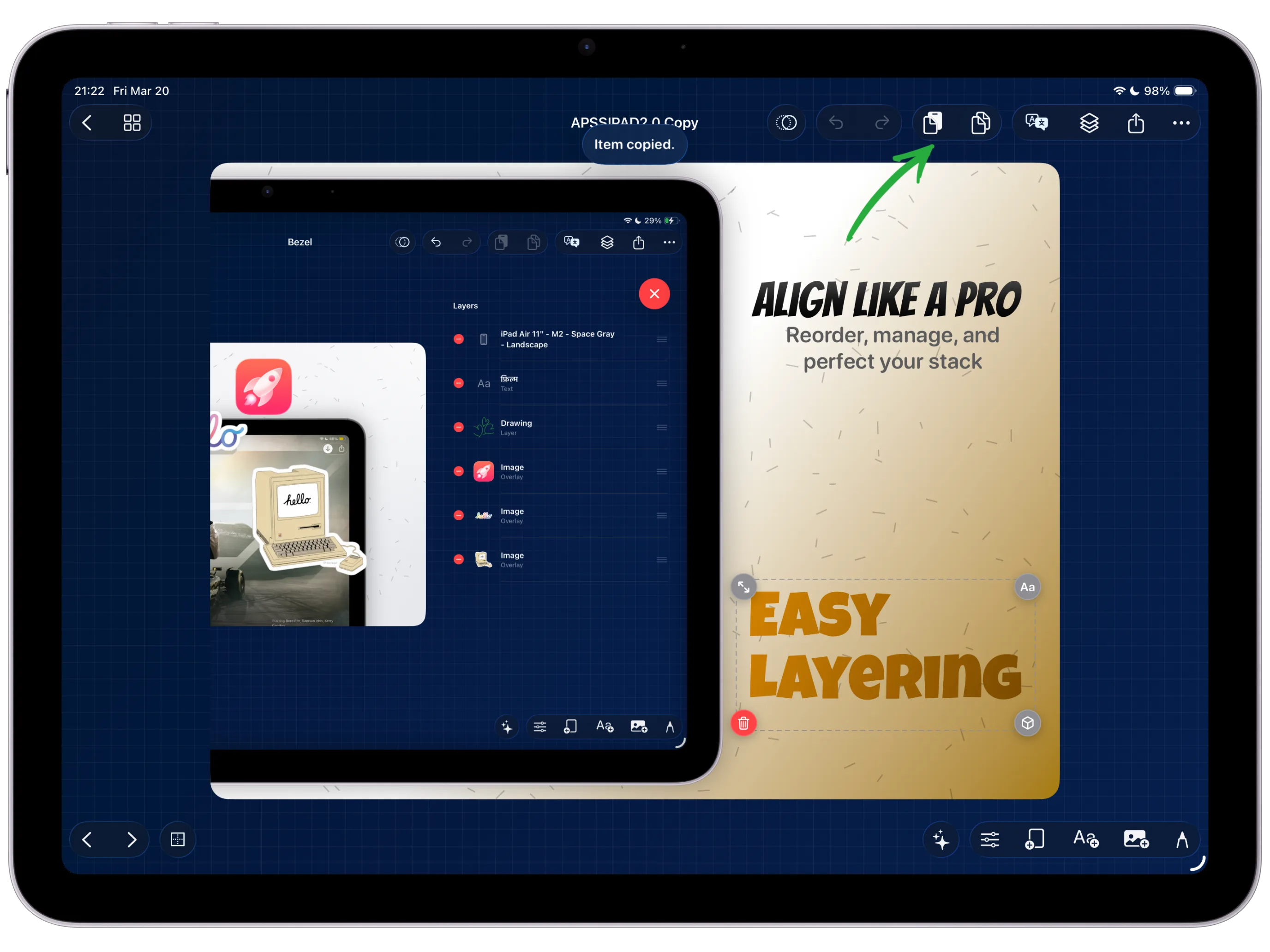
What You'll Build
A reusable screenshot layout carried into the next release without rebuilding frames, captions, and export structure.
What You'll Use
Copy and paste, projects, canvases, layer order, captions, frames, and export checks.
Screenshot Plan
Capture each step with the real Bezel Studio project state so the guide can later replace placeholders with product screenshots.
Step 01
Start from the last approved launch canvas.
Open the project that already shipped or passed review. The strongest layout is usually the one with proven frame spacing, caption hierarchy, and export dimensions.
Screenshot To Add
Capture this step in Bezel Studio with the relevant project, canvas, or export state visible.
Step 02
Copy the full canvas structure before changing content.
Use the reusable layout as structure, not as a screenshot archive. Keep frame placement, background treatment, text style, and layer order intact before replacing the app screenshot.
Screenshot To Add
Capture this step in Bezel Studio with the relevant project, canvas, or export state visible.
Step 03
Paste into the next release project.
Move the scene into the new project so the updated feature screenshot starts from an export-ready system. This keeps repeated launches inside Bezel Studio instead of scattered across one-off mockup files.
Screenshot To Add
Capture this step in Bezel Studio with the relevant project, canvas, or export state visible.
Step 04
Replace only the release-specific parts.
Swap the screenshot, update the caption, and adjust any supporting sticker or callout. Avoid restyling the whole scene unless the new release actually needs a new campaign look.
Screenshot To Add
Capture this step in Bezel Studio with the relevant project, canvas, or export state visible.
Step 05
Review the copied layers before export.
Open the layer order and confirm frames, text, images, and drawings still stack cleanly. Copying a layout is fast, but launch assets still need final structure review.
Screenshot To Add
Capture this step in Bezel Studio with the relevant project, canvas, or export state visible.
Step 06
Send the reused layout into the release QA sequence.
Once the layout is stable, continue into the multi-device, screenshot-set review, and release asset kit guides so the copied system becomes a complete delivery path.
Screenshot To Add
Capture this step in Bezel Studio with the relevant project, canvas, or export state visible.