
How-To Guide 24
How to review an App Store screenshot set before export.
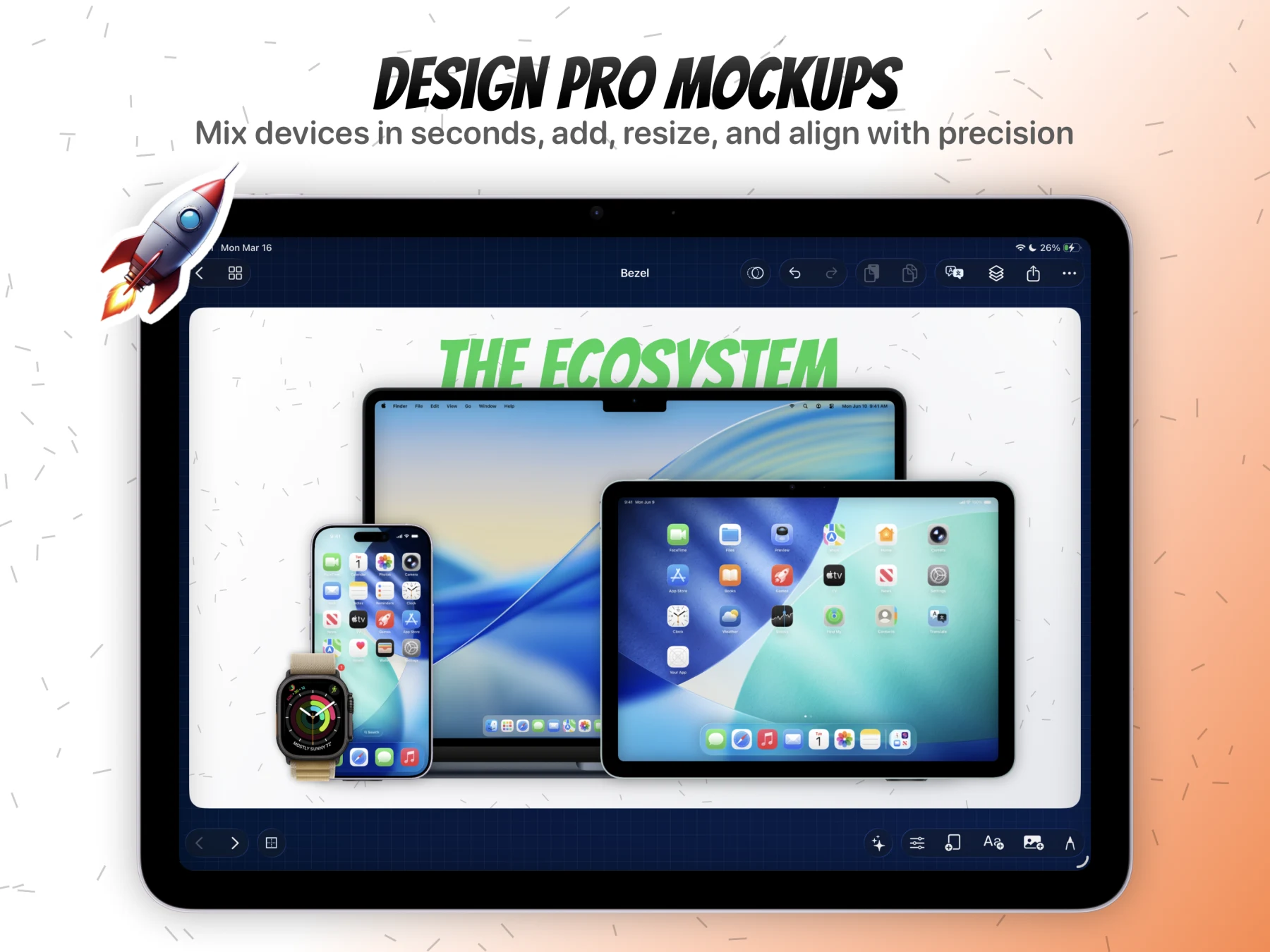
This release-QA workflow keeps Bezel Studio's project model, editable canvases, device frames, captions, localization, motion, and export tied to one launch path. It is for teams and indie developers who need more App Store-ready assets without rebuilding the same visual system every release.
What You'll Build
A launch screenshot set that has been checked as a sequence before final export.
What You'll Use
Multi-canvas projects, grid review, captions, localization checks, device frames, and export prep.
Screenshot Plan
Capture each step with the real Bezel Studio project state so the guide can later replace placeholders with product screenshots.
If the screenshot set is ready for final review, open the export workflow page or install Bezel Studio and check every still, localized variant, and motion-ready canvas in one place.
Step 01
Review the set as one campaign, not separate screenshots.
Open the canvases together and check whether the first screen, feature screens, localization screens, and export screens feel like one launch story.
Screenshot To Add
Capture this step in Bezel Studio with the relevant project, canvas, or export state visible.
Step 02
Check the opening screenshot for qualified intent.
The first asset should make the App Store screenshot maker, iPhone mockup, localization, or preview-video promise clear enough that the next screenshots can go deeper.
Screenshot To Add
Capture this step in Bezel Studio with the relevant project, canvas, or export state visible.
Step 03
Scan captions for hierarchy and overflow.
Look for inconsistent line breaks, small text, crowded glass panels, or translated copy that no longer fits. Fix typography before export because this is the fastest point to catch it.
Screenshot To Add
Capture this step in Bezel Studio with the relevant project, canvas, or export state visible.
Step 04
Confirm devices and screenshots stay readable.
Every frame should support the app story. If a device stack or sticker hides the actual product screen, simplify it before the final export pass.
Screenshot To Add
Capture this step in Bezel Studio with the relevant project, canvas, or export state visible.
Step 05
Separate still export from motion handoff.
If a canvas will become a preview-video variant, confirm its still composition first. Motion should enhance an approved layout, not compensate for a weak one.
Screenshot To Add
Capture this step in Bezel Studio with the relevant project, canvas, or export state visible.
Step 06
Approve the set before building the final release kit.
When the sequence works, move into the release asset kit guide so stills, localized variants, and video-ready canvases leave the project together.
Screenshot To Add
Capture this step in Bezel Studio with the relevant project, canvas, or export state visible.