
How-To Guide 23
How to create multi-device promo visuals for an App Store launch.
This release-QA workflow keeps Bezel Studio's project model, editable canvases, device frames, captions, localization, motion, and export tied to one launch path. It is for teams and indie developers who need more App Store-ready assets without rebuilding the same visual system every release.
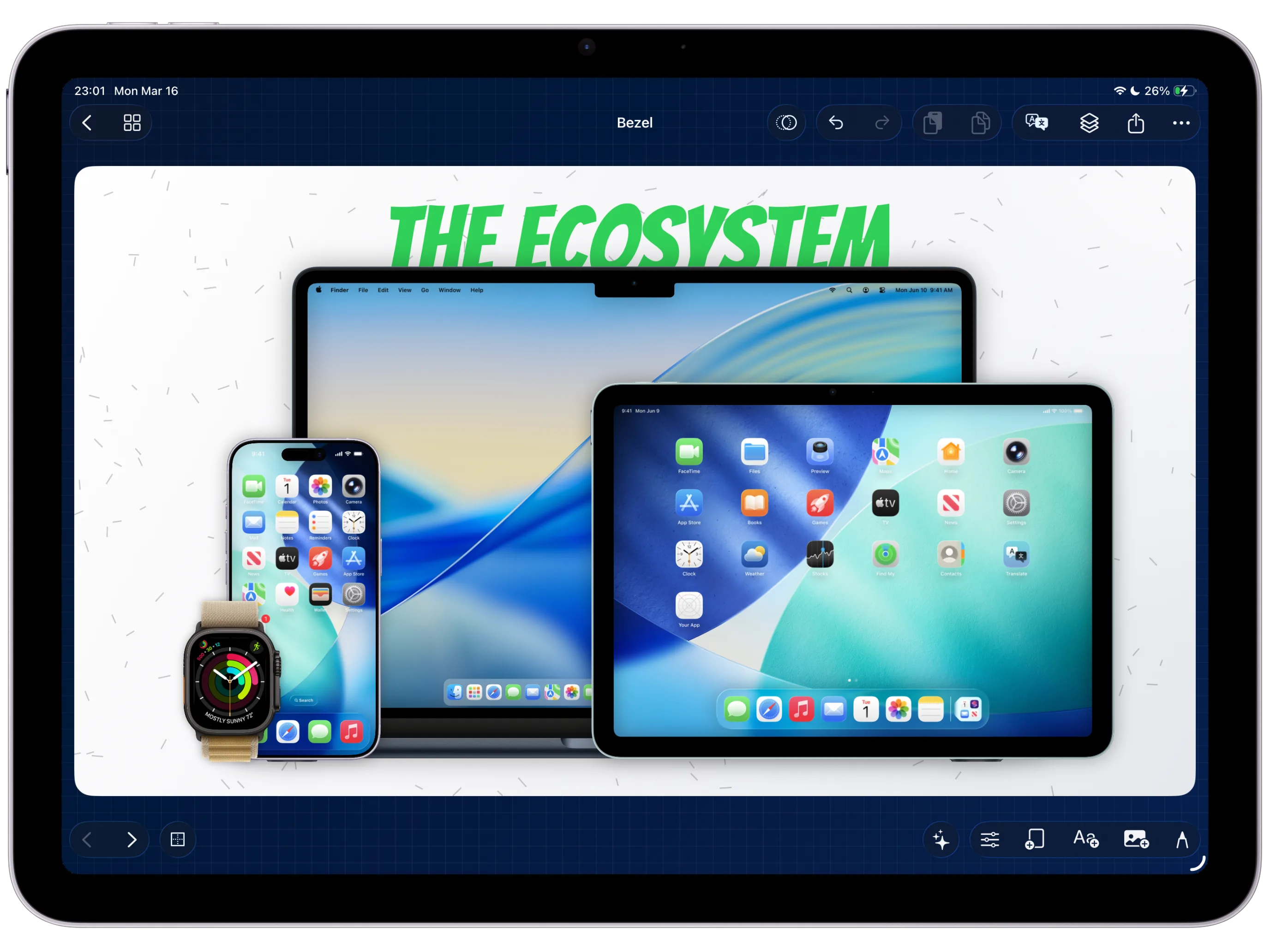
What You'll Build
A multi-device launch scene that keeps the product screen, caption, and device stack readable.
What You'll Use
Device frames, canvas sizing, background styling, layer order, captions, and export review.
Screenshot Plan
Capture each step with the real Bezel Studio project state so the guide can later replace placeholders with product screenshots.
If you need this multi-device launch visual in the product now, open the device-frame feature page or install Bezel Studio and keep the whole release sequence in one project.
Step 01
Choose the lead device first.
Start with the device that best explains the feature. In most App Store screenshot work, that means the iPhone frame first, then supporting device context only when it adds clarity.
Screenshot To Add
Capture this step in Bezel Studio with the relevant project, canvas, or export state visible.
Step 02
Add supporting frames only when they explain the launch.
Bring in iPad, Apple Watch, MacBook, iMac, or Apple TV-style compositions when the campaign needs a broader Apple-platform story. Keep iPhone and iPad claims strongest because those are the clearly supported full editor surfaces.
Screenshot To Add
Capture this step in Bezel Studio with the relevant project, canvas, or export state visible.
Step 03
Keep the caption system above the device stack.
A multi-device composition can get crowded quickly. Use the same caption hierarchy from the reusable layout so the user reads the promise before inspecting the devices.
Screenshot To Add
Capture this step in Bezel Studio with the relevant project, canvas, or export state visible.
Step 04
Use layers to protect depth and readability.
Place frames, screenshots, stickers, captions, and backgrounds in a deliberate order. If the scene needs dimension, use transforms carefully without hiding the actual app screen.
Screenshot To Add
Capture this step in Bezel Studio with the relevant project, canvas, or export state visible.
Step 05
Check the scene against export dimensions.
A beautiful device stack can fail if it crops awkwardly or makes text too small. Review the final canvas size before the scene joins the screenshot set.
Screenshot To Add
Capture this step in Bezel Studio with the relevant project, canvas, or export state visible.
Step 06
Link the visual back into the release sequence.
After the multi-device scene is stable, review it alongside the rest of the App Store screenshot set instead of exporting it as an isolated promo image.
Screenshot To Add
Capture this step in Bezel Studio with the relevant project, canvas, or export state visible.