
 Start building for free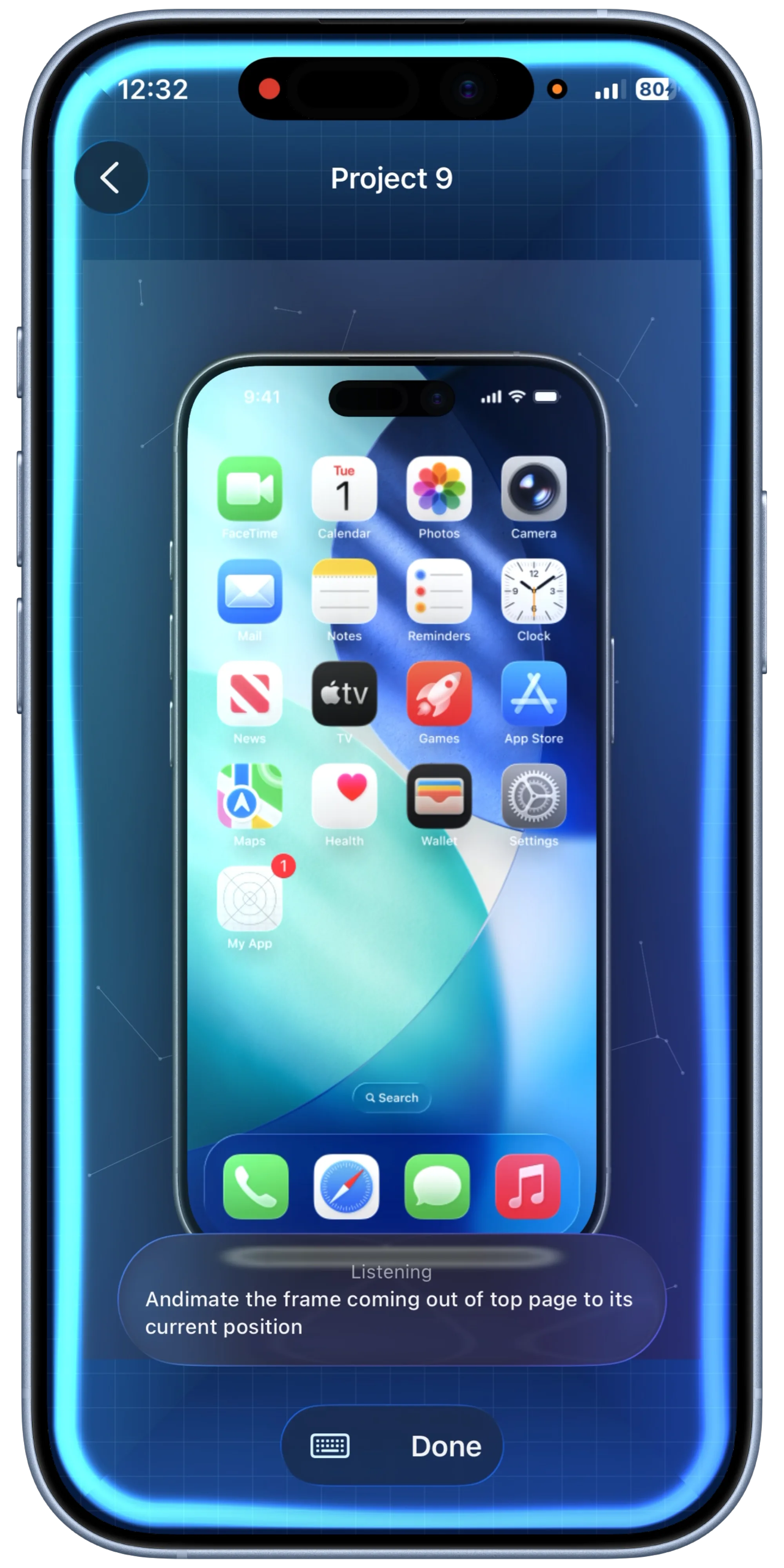
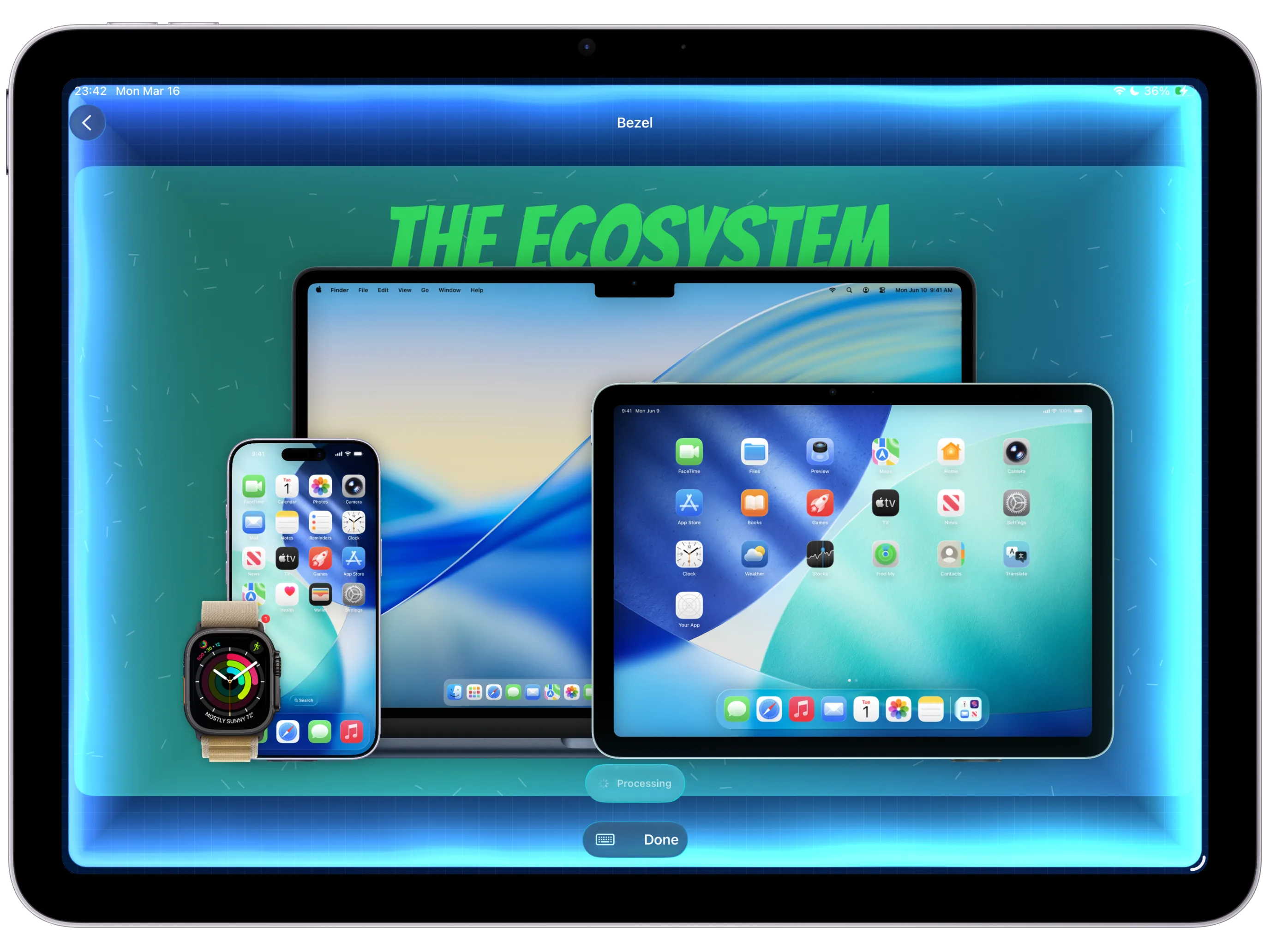
Turn on BezelAI from a canvas and describe the change you want.
BezelAI & Shortcuts
Describe what you want in plain language, then automate fast mockup creation with the same project data Bezel Studio already understands.
Inside BezelAI
Move from idea to polished output with less manual setup.
BezelAI and Quick Mockups sit on top of the same canvas system, which means the assistant can edit structured project data instead of guessing at a flattened image.
That makes it useful for both direct edits and automation, from phrase changes to saved screenshot recipes you can trigger through Shortcuts.
How to use BezelAI
Request layout adjustments, copy changes, motion ideas, or styling updates in natural language.
Let the assistant apply structured changes to the same canvas model.
Store a setup as a reusable preset for shortcut-driven workflows.
Use Shortcuts or sharing flows to turn screenshots into ready-made mockups fast.
Best for
Fast iteration when a design needs small changes, not a rebuild.
Repeatable launch workflows that should start from saved presets.
Automation-heavy teams that want screenshots to move through the pipeline faster.
Keep Exploring
Related guides for this feature
Pair AI-assisted editing with reusable workflows to accelerate repeatable screenshot production, then send high-intent visitors toward the App Store when they are ready to build.
Guide
How to use BezelAI to refine an App Store screenshot canvas.
Request focused edits to text, frames, backgrounds, lighting, canvas size, and motion, then review the result by hand.
Guide
How to rewrite App Store screenshot captions with BezelAI.
Use AI-assisted caption revision while keeping text overlays editable and translation-safe.
Guide
How to adjust App Store screenshot backgrounds with BezelAI.
Explore background and lighting direction without burying product readability.
Guide
How to prepare shortcut-ready mockup presets for repeated launch assets.
Build the reusable Quick Mockup preset before repeated screenshots or recordings flow through Shortcuts.
Guide
How to make instant mockups with Quick Mockups and Shortcuts.
Automate repeatable mockup output with presets, Shortcuts, and one-tap generation.
Guide
How to create your first App Store screenshot project on iPhone.
Build the project foundation with frame setup, canvas sizing, styling, and export.