
How-To Guide 12
How to export high-quality stills and videos from the same project.
A launch project is only useful if it can leave the canvas cleanly. The same composition should be able to produce still-image packs, localized screenshots, and preview-video output without forking into separate files or separate tools.
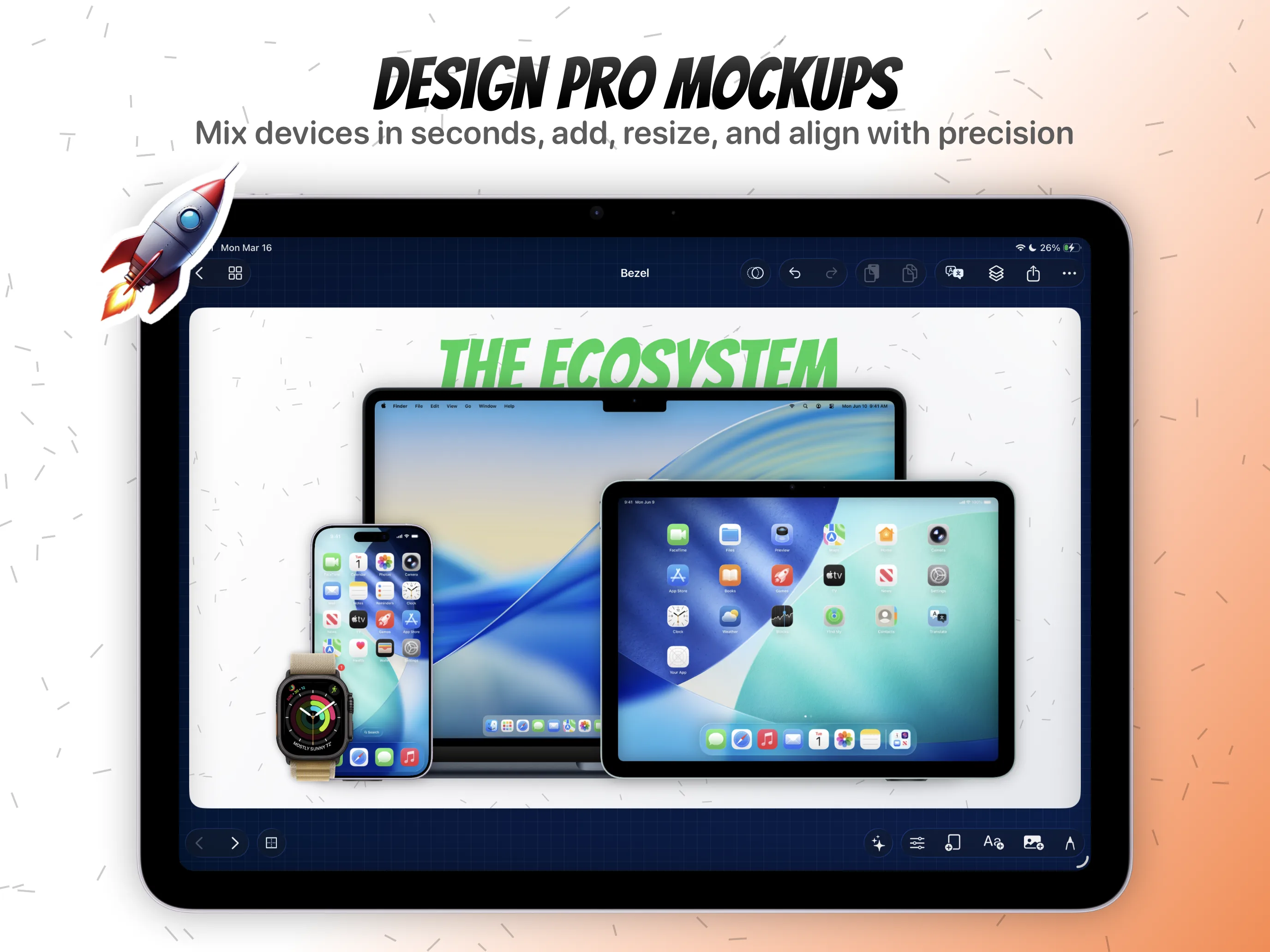
What You'll Build
One delivery-ready pack containing still-image exports and motion output from the same Bezel Studio project.
What You'll Use
Batch export, device grouping, locale grouping, preview-video checks, and reusable project cleanup.
Screenshot Plan
Show 1 finished still, 1 export sheet, 1 locale grouping view, 1 motion preview, 1 batch export run, and 1 final folder or share result.
Step 01
Lock the final still and motion variants before export.
Finish the still-image screens, any localized variants, and the motion-ready compositions before you start rendering. Export is easier when the project already reflects the real launch pack instead of a half-finished draft.
Screenshot To Add
The completed project showing still-image and motion-ready canvases before export begins.
Step 02
Open the batch export controls for stills and videos.
Use the controls from the batch export App Store screenshots and preview videos feature page so the project can render multiple deliverables without forcing you to rebuild the same files by hand.
Screenshot To Add
The batch export controls open with still and video deliverables visible in the same workflow.
Step 03
Separate the deliverables by device, locale, and format.
Group the outputs so iPhone stills, iPad stills, and localized variants stay organized. If the pack includes translation work, this is where the localization guide pays off.
Screenshot To Add
Still-image and locale groupings organized before the final render is triggered.
Step 04
Check the motion or preview-video output before final render.
Preview the moving version while the still pack is already ready. The best export workflow lets the Canvas Motion guide and the screenshot workflow stay inside the same project instead of splitting off into another app.
Screenshot To Add
A preview-video or motion check running alongside the export settings for the same project.
Step 05
Export the still-image pack and the video pack from the same project.
Render the stills and the preview-video assets while the caption system, stickers, and callouts are still intact. That is the payoff for the rest of the release polish cluster: one project, multiple launch deliverables, no rebuild.
Screenshot To Add
The final export pass producing both still-image and motion assets from the same project structure.
Step 06
Review the shipped files and keep the reusable project intact for the next release.
Check the output pack, then keep the project ready for the next version instead of flattening it into a dead end. That way the same polished system can reopen later when captions, annotations, or screenshots need to change again.
Screenshot To Add
The exported files reviewed next to the original project that remains reusable for the next launch.